Why Claude code is hard to share
Claude is one of the best AI tools for generating clean, well-structured web code. Ask it for a landing page and you'll usually get something that looks decent on the first try — not just a skeleton, but an actual page with layout, colors, and copy already in place.
But here's the problem. The Artifact panel shows you a preview, not a real website. That URL in your browser tab while you're in Claude? It doesn't work for anyone else. You can't send it to a client. You can't post it anywhere. It only exists for you, right now, in that chat session.
Most people then try to figure out where to actually host the code. And that's where things fall apart. Netlify, Vercel, and GitHub Pages all require you to know what a repository is, how to push code, and what a build command does. If you're not a developer, those steps feel like they were designed for someone else entirely.
GeminiLaunch removes that entire layer. You paste the code, hit publish, and get a real live URL. That's the whole workflow.
What you need before you start
Three things. Nothing to install or configure.
Claude account
Free at claude.ai — no paid plan needed to generate code
GeminiLaunch account
Free to sign up at geminilaunch.com — no credit card required
A browser
Chrome, Safari, Edge, or Firefox all work fine
Step-by-step: from Claude output to live website
Five steps. The first time takes under ten minutes. After that, the whole generate-and-publish cycle runs in under two.
Generate your website code in Claude
Open Claude at claude.ai and describe the website you want. Be specific — layout, sections, colors, purpose. Claude will produce either a clean HTML file or a React component inside an Artifact. Both work with GeminiLaunch, so don't worry about which one you get. If you see the Artifact panel pop up on the right with a live preview, that's your code ready to go.
Tip: Ask Claude for a single-file HTML page with inline CSS and JavaScript. Say exactly: 'Build me a single-file HTML page with all styles and scripts inline.' This avoids multiple files you'd need to manage separately.
Copy the code from Claude
Click the copy button inside the Artifact panel — or if Claude gave you a code block in the chat, copy it from there. You want the entire output: structure, styles, and any scripts. Don't try to clean it up or split it first. Claude's code works best when published as-is before you start tweaking anything.
Tip: If the code looks cut off or the preview in Claude seems incomplete, type 'continue' and Claude will pick up from where it stopped. Always check the full output before copying.
Paste it into GeminiLaunch and name your project
Go to GeminiLaunch and create a new project. Give it a name — this becomes the slug of your live URL, like yourproject.geminilaunch.com. Paste Claude's code into the editor. GeminiLaunch automatically figures out whether it's HTML or React — you don't need to select anything or change any settings. Just paste and move on.
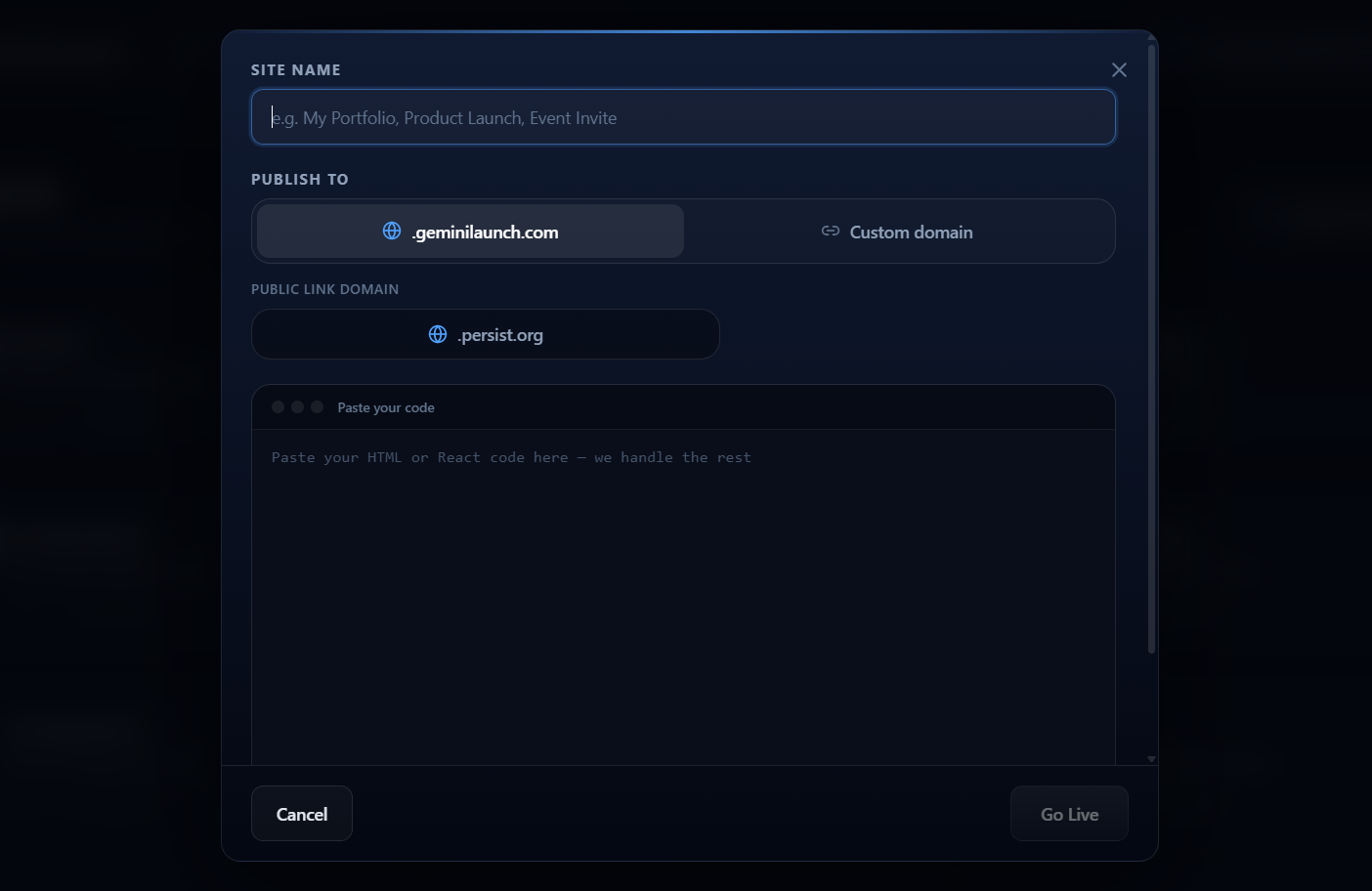
Tip: Pick a short, clear project name. It becomes part of your public URL, so 'my-portfolio' works better than 'claudeproject-v3-final'. You can always rename it later from your dashboard.
Hit Go Live and get your URL
Click the Go Live button. GeminiLaunch processes the code and within seconds gives you a public URL — something like yourproject.geminilaunch.com. Open it in a new tab and check that it looks right. At this point, anyone in the world can access your page. No sign-up required on their end, no password, nothing.
Tip: Check the live page on your phone too. Claude sometimes builds desktop-first layouts that look off on mobile. If the mobile version needs fixing, describe the issue to Claude, copy the updated code, and republish. Takes about two minutes.
Share the URL — and keep improving
Your page is live on a free GeminiLaunch subdomain. Share it with clients, post it on social, send it in a DM — it works anywhere. When Claude makes updates for you, just copy the new code and republish. The URL stays the same. If you ever want your own branded domain like myproduct.com, you can connect it from your GeminiLaunch dashboard without touching any code.

Tip: Don't wait for the page to be perfect before sharing. Getting real feedback on a live page is more useful than polishing something no one has seen yet. Publish early, improve after.
Mistakes to avoid
Most issues people run into come from one of these six things.
- Asking Claude for separate HTML, CSS, and JS files — always ask for everything in one file.
- Copying just the HTML without the style block — Claude often puts CSS at the bottom of the same file.
- Editing the raw code manually when something looks wrong — describe the issue to Claude instead.
- Forgetting to check the page on mobile — Claude's layouts are often desktop-first by default.
- Waiting until the design is 'finished' to publish — put it live and iterate from there.
- Using a vague prompt — the more detail you give Claude, the closer the first output gets.
Claude prompts that produce publish-ready websites
Copy any of these, fill in the bracketed details, and paste into Claude. Each one is written to produce a single clean file ready to publish immediately.
SaaS landing page
Build me a single-file HTML landing page for a SaaS tool called [product name] that helps [target user] with [problem]. Include a hero section with headline and CTA button, a 3-column features section, a pricing table with 3 tiers (Free, Pro, Enterprise), and a footer with links. Dark background, sans-serif font, blue accent color. All CSS and JavaScript inline. Fully responsive for mobile.
Personal portfolio
Build me a single-file HTML portfolio page for a freelance [type of work] named [your name]. Include a short bio, a 6-card project grid with placeholder images, a skills section, and a contact section with an email link. Minimal white background with black text and one accent color of your choice. All CSS inline. Fully responsive.
Product launch page
Build me a single-file HTML launch page for [product name] launching on [date]. Include a bold hero with countdown timer, a 3-section feature overview, a waitlist sign-up form, and a footer. Dark background, modern fonts, and a gradient accent. All CSS and JS inline. Fully responsive for mobile.
Local business website
Build me a single-file HTML website for a local [type of business] called [name] in [city]. Include a hero section, a services section with 4 cards, an about section with a short paragraph, and a contact section with phone number and address. Warm, professional colors. All CSS inline. Fully responsive.
Related guide
Turn a Claude artifact into a real website
Why claude.site is not enough and how to get your own domain.
Read the guideRelated guide
Using ChatGPT instead of Claude?
The workflow is almost identical — but there are a few ChatGPT-specific tips worth knowing, especially around single-file output.
How to host a ChatGPT-generated website for freeFrequently asked questions
Is GeminiLaunch actually free to use?
Yes. The free plan includes up to 3 live sites, with uploads up to 5 MB per site and a small "Powered by GeminiLaunch" badge. You get a live URL at yourproject.geminilaunch.com for free, with no expiry and no bandwidth warnings on standard usage. Editing after publish, removing the badge, and 1 custom domain start on Lite ($5/mo); unlimited sites need Pro ($15/mo) or Scale.
Do I need to know how to code to host a Claude website?
No. Claude writes the code and GeminiLaunch handles the hosting. You're just copying and pasting. There's no terminal, no GitHub, no config files, and no deployment pipeline to set up.
Does GeminiLaunch work with Claude Artifacts?
Yes. Claude Artifacts output HTML or React — both formats work with GeminiLaunch. Copy the code from the Artifact panel, paste it in, and publish. GeminiLaunch detects the format automatically.
Can I update the site after publishing?
Yes. Ask Claude to make changes, copy the updated code, paste it into your existing project in GeminiLaunch, and republish. The URL stays the same. The whole update cycle takes under two minutes once you've done it once.
What's the difference between GeminiLaunch and Netlify or Vercel for Claude output?
Netlify and Vercel are built for developers who have GitHub repositories and build pipelines already set up. GeminiLaunch is built specifically for the case where you have AI-generated code and just need it live — no repo, no CLI, no config. It's the fastest path from Claude output to a shareable URL.
Can I connect a custom domain to my Claude website?
Yes. Custom domains start on Lite ($5/mo). GeminiLaunch walks you through the DNS setup step by step from your dashboard — no developer needed. Start on the free subdomain and upgrade when you're ready for a branded URL.
Will my Claude-generated website show up on Google?
It can. Once your page is on a live URL, Google can index it. A clear title, a proper meta description, and useful content all help. GeminiLaunch lets you set the page title and meta description before publishing — use them.
Like this guide? Make GeminiLaunch a preferred source.
Get our hosting and deployment guides surfaced first in your Google results, AI Overviews, and Top Stories.
Ready to put your Claude website live for free?
Paste your Claude HTML or Artifact into GeminiLaunch, publish in seconds, and get a free shareable URL. No GitHub, no servers, no setup. Start free — no credit card needed.