Blog Guide
How to publish Gemini-generated HTML without coding
Google Gemini can generate full website code in seconds, but most people get stuck turning that code into a real public URL. This guide walks through the full no-code workflow so you can go from prompt to published website in minutes.
Canvas, AI Studio, and domain setup: Google Gemini guides hub.
Under 10 min
Typical setup
None
Coding needed
Instant URL
Live sharing
Why people get stuck after Gemini generates the code
Google Gemini is excellent at producing HTML quickly. You can describe a landing page, portfolio, or launch page and get structured code almost instantly.
The hard part comes next: hosting. Most tools assume you understand repositories, deployment settings, and server workflows. For non-developers, that friction is where momentum is lost.
GeminiLaunch closes that gap by making publishing feel as simple as copy, paste, and click.
What you need before you start
Keep setup simple and avoid over-preparing.
Google account
To access Gemini at gemini.google.com
GeminiLaunch account
Free to sign up and publish your first pages quickly
A browser
Chrome, Safari, Edge, or Firefox all work
Step-by-step: from Gemini prompt to live website
Follow this sequence once, then reuse it for every new page.
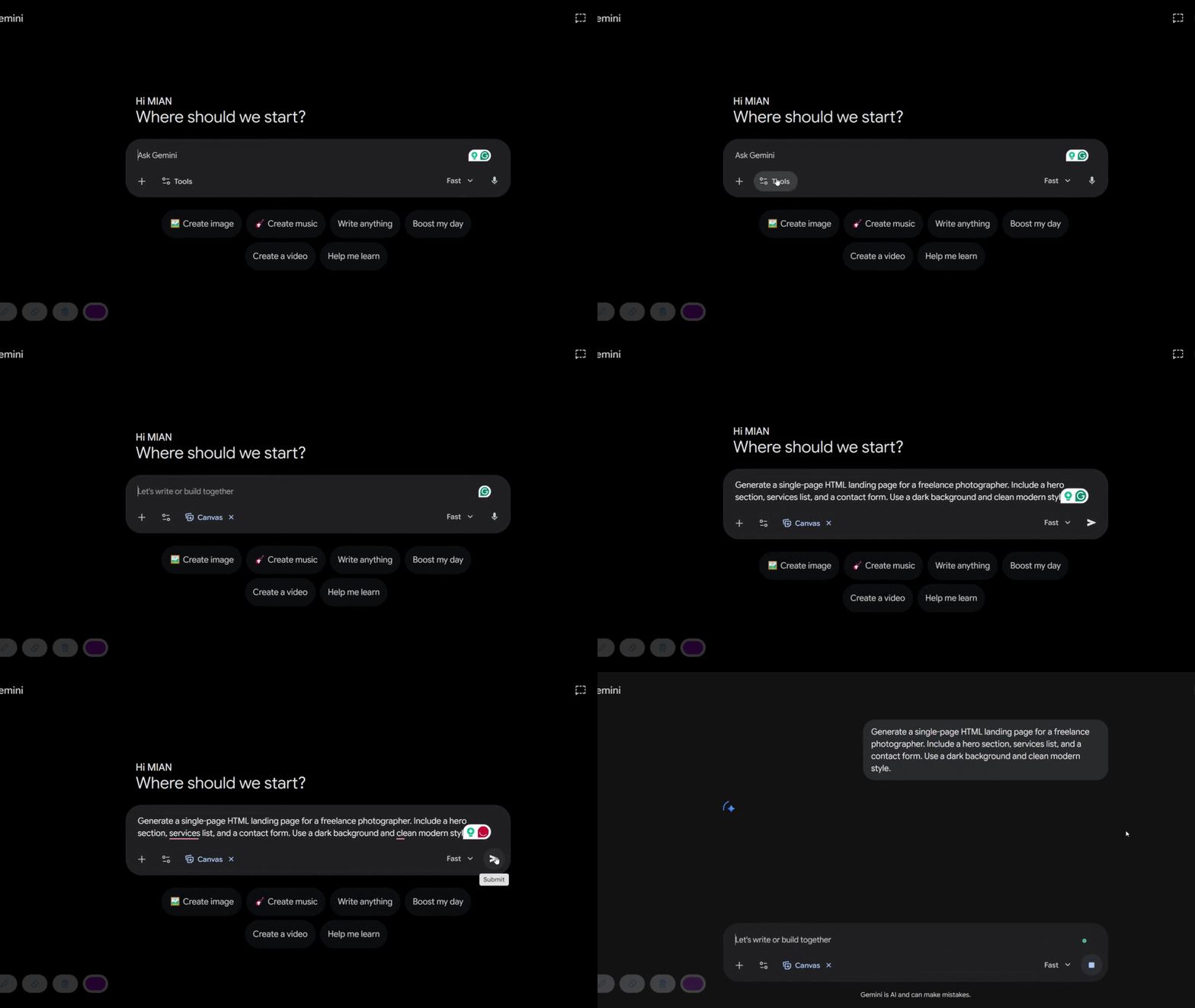
Open Google Gemini and write your prompt
Go to gemini.google.com and ask it to generate a website. Be specific — the more detail you give, the better the output. For example: 'Generate a single-page HTML landing page for a freelance photographer. Include a hero section, services list, and a contact form. Use a dark background and clean modern style.' Gemini will generate a full block of HTML code for you.
Prompt tip: Always ask for a single-file HTML page. It keeps everything in one place and makes publishing much easier.
Copy the generated HTML code
Once Gemini responds, you will see a block of code. Click the copy button at the top right of the code block. This copies everything — the HTML structure, CSS styles, and any inline JavaScript — all in one go. You do not need to understand any of it. Just copy it exactly as it is.
Do not edit the code manually if you are not a developer. If something looks wrong, go back to Gemini and ask it to fix it instead.
Paste it into GeminiLaunch
Go to GeminiLaunch and create a new project. You will see a simple editor where you can paste your copied HTML. Hit publish. Within seconds, GeminiLaunch gives you a live public URL — something like yourproject.geminilaunch.app — that anyone can open in their browser. No server setup. No GitHub. No terminal.
Your page is already live at this point. You can share this URL with clients, teammates, or on social media immediately.
Preview and check the page
Open the live URL and review the page carefully. Check that the text reads correctly, images load if you added any, and buttons or links go to the right places. If something looks off, go back to Gemini, describe the issue, and ask it to fix it. Then copy the updated code and republish in GeminiLaunch — the whole process takes under a minute.
View your page on mobile too. Gemini often generates desktop-first layouts. If it looks broken on phone, ask Gemini to make the design fully responsive.
Connect a custom domain when ready
If you want the page to live on your own domain — like myportfolio.com or myproduct.io — you can connect it inside GeminiLaunch without touching any code. GeminiLaunch walks you through the DNS settings step by step. Most domains are connected and live within a few minutes.
You do not need a custom domain to start. Ship first on the GeminiLaunch URL, then add your domain once the page is ready for public launch.
Mistakes to avoid when publishing Gemini HTML
Asking Gemini for multiple HTML files — stick to one single-file page to avoid confusion.
Trying to edit the raw HTML manually when something looks wrong — ask Gemini to fix it instead.
Closing the Gemini chat before saving the code — always copy or save the output before leaving.
Skipping the mobile preview — most AI-generated pages need a quick responsive check.
Waiting until the page is perfect before publishing — ship early and improve after launch.
Gemini prompts that work well for websites
Use these as templates, then replace bracketed parts with your product details.
Landing page
Generate a single-file HTML landing page for [your product]. Include a hero section with headline and CTA button, a 3-column features section, and a footer. Use a dark background, clean sans-serif font, and blue accent color. Make it fully responsive for mobile.
Portfolio page
Generate a single-file HTML portfolio page for a freelance [your profession]. Include a brief bio, a grid of 6 project cards, and a contact section with email link. Use a minimal white design with black text. Make it fully responsive.
Coming soon page
Generate a single-file HTML coming soon page for [product name]. Include a headline, one-line description, an email signup field with a button, and a subtle animated background. Make it centered and minimal. Fully responsive.
GeminiLaunch vs traditional hosting options
This comparison focuses on speed and simplicity for AI-generated HTML workflows.
| Feature | GeminiLaunch | Netlify | GitHub Pages | Vercel |
|---|---|---|---|---|
| Setup time | Under 1 minute | 5-15 minutes | 20-30 minutes | 10-20 minutes |
| Coding required | None | Basic | Yes - Git required | Basic |
| Built for AI output | Yes - designed for it | No | No | No |
| Paste and publish | Yes | No - needs deploy config | No - needs repo | No - needs project setup |
| Custom domains | Yes - paid plans | Yes - free tier | Yes - free | Yes - free tier |
| Free tier | Up to 3 live sites — free | Yes | Yes | Yes |
Bottom line: tools like Netlify, Vercel, and GitHub Pages are excellent for developer-first workflows. GeminiLaunch is optimized for the opposite path: AI-generated code that needs to go live fast, without deployment complexity.
Frequently asked questions
Do I need to know HTML or CSS to publish a Gemini-generated website?
No. Gemini writes the code for you and GeminiLaunch handles the hosting. You do not need to understand or touch any code at any point in the process.
Is GeminiLaunch free to use?
Yes. The free plan publishes up to 3 live sites on GeminiLaunch subdomains, with uploads up to 5 MB per site and a small "Powered by GeminiLaunch" badge on the page. Editing after publish, removing the badge, 15 MB uploads, and 1 custom domain start on Lite ($5/mo). Unlimited sites, analytics, 45 MB uploads, and up to 5 domains are on Pro ($15/mo); Scale ($39/mo) adds unlimited domains.
Can I update my page after publishing?
Yes. Go back to Gemini, ask it to update the page, copy the new code, and republish in GeminiLaunch. Updates go live in seconds.
Can I use my own domain name instead of a GeminiLaunch URL?
Yes. Lite ($5/mo) includes 1 custom domain; Pro ($15/mo) includes up to 5; Scale ($39/mo) includes unlimited custom domains. GeminiLaunch guides you through DNS setup without needing a developer.
Does this work with ChatGPT or Claude as well?
Yes. GeminiLaunch works with HTML or React code generated by any AI tool — Gemini, ChatGPT, Claude, or anything else that outputs web code.
Will my published page show up on Google?
It can. Once your page is on a live URL, search engines can index it. Adding a proper page title, meta description, and relevant content improves your chances of ranking.
Start here
Gemini website hosting
Hub guide: Gemini does not host — paste Canvas code, free live URL, then your domain.
Read Gemini website hostingRelated guide
Turn a Gemini Canvas into a website
Why the g.co share link is not enough, and the Canvas → live URL path.
Read the guideLike this guide? Make GeminiLaunch a preferred source.
Get our hosting and deployment guides surfaced first in your Google results, AI Overviews, and Top Stories.
Ready to publish your first Gemini-generated page?
Paste your generated HTML, publish instantly, then keep improving your page with fresh AI prompts. Start free and move to paid plans when you need more scale and custom domains.