Quick answer
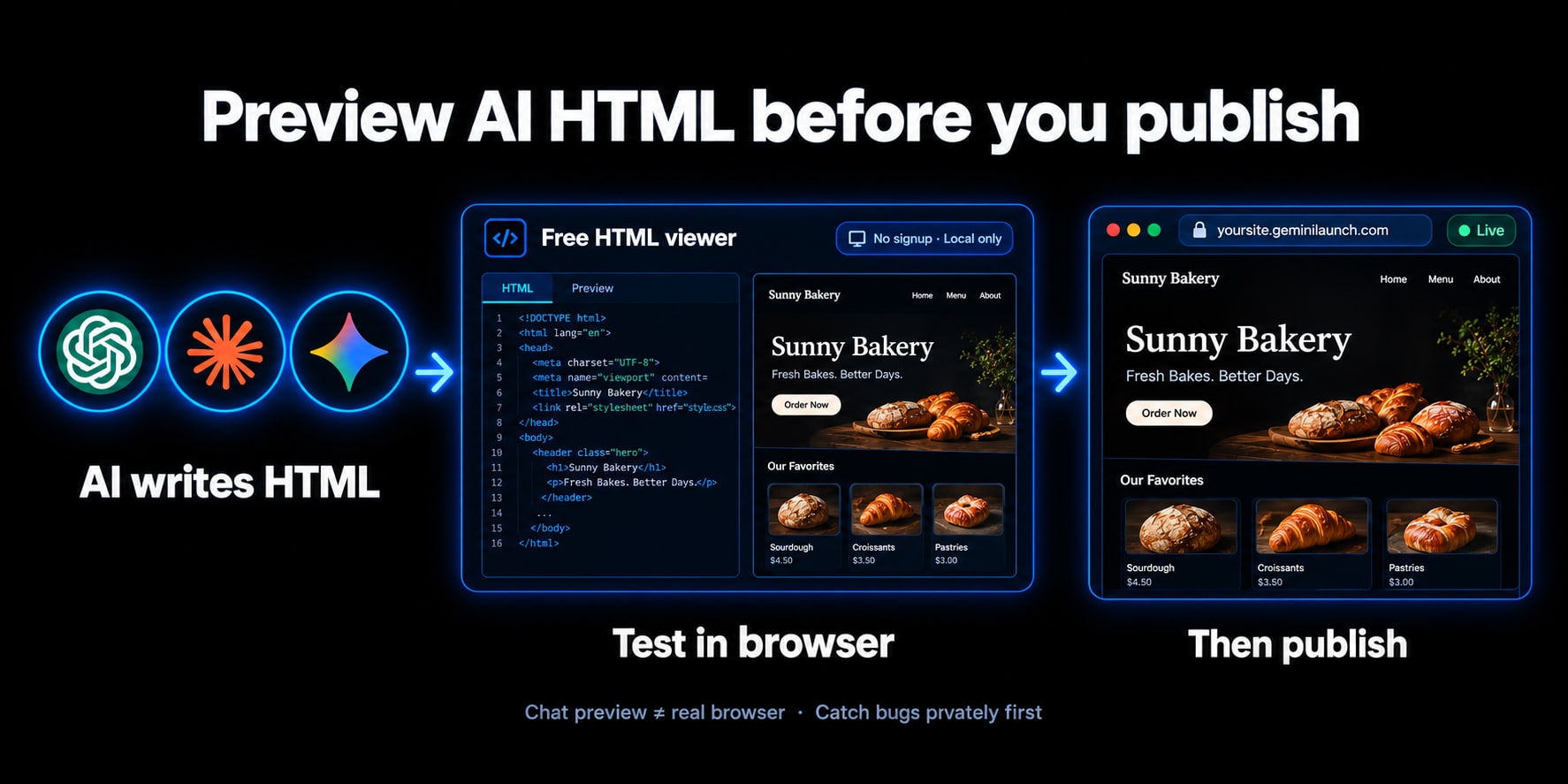
To preview AI HTML online before you publish: paste the code (or open an .html file) into the free GeminiLaunch HTML viewer, check phone and desktop, fix errors there, then publish the same markup for a public URL. The viewer never uploads your draft; publishing is the step that creates a shareable site.
The problem
The chat preview is not a real browser
You ask an AI for a landing page. It looks sharp inside the chat. You publish — and on your phone the hero is cut off, a button does nothing, or half the CSS never applied.
That is not bad luck. Chat canvases and artifacts are drafting surfaces. They soften overflow, hide console noise, and rarely match every device width you care about.
A free online HTML viewer puts the same markup in a real browser engine on your machine — before anyone else sees a live link.
Chat UIs are not the same as Chrome or Safari on a phone
Script errors often show up only outside the AI window
Publishing first turns every fix into a republish cycle
Clients need a URL — you need a private check first
Key insight
Preview answers “does this work?” Publish answers “can someone else open it?” Do not ask one tool to do both jobs.
Compare
Chat preview vs HTML viewer vs publish
Three different jobs. Mixing them up is how people ship broken pages — or never ship at all.
| Option | What you get | Shareable | Real browser | Best for |
|---|---|---|---|---|
| Chat / Canvas preview | Looks fine inside the AI UI | No | Partial | Drafting copy and layout ideas |
| GeminiLaunch HTML viewer | Live render in your browser | No (local only) | Yes | Catching bugs before you host |
| Publish to a live URL | Public HTTPS page | Yes | Yes | Clients, SEO, and sharing |
Step-by-step
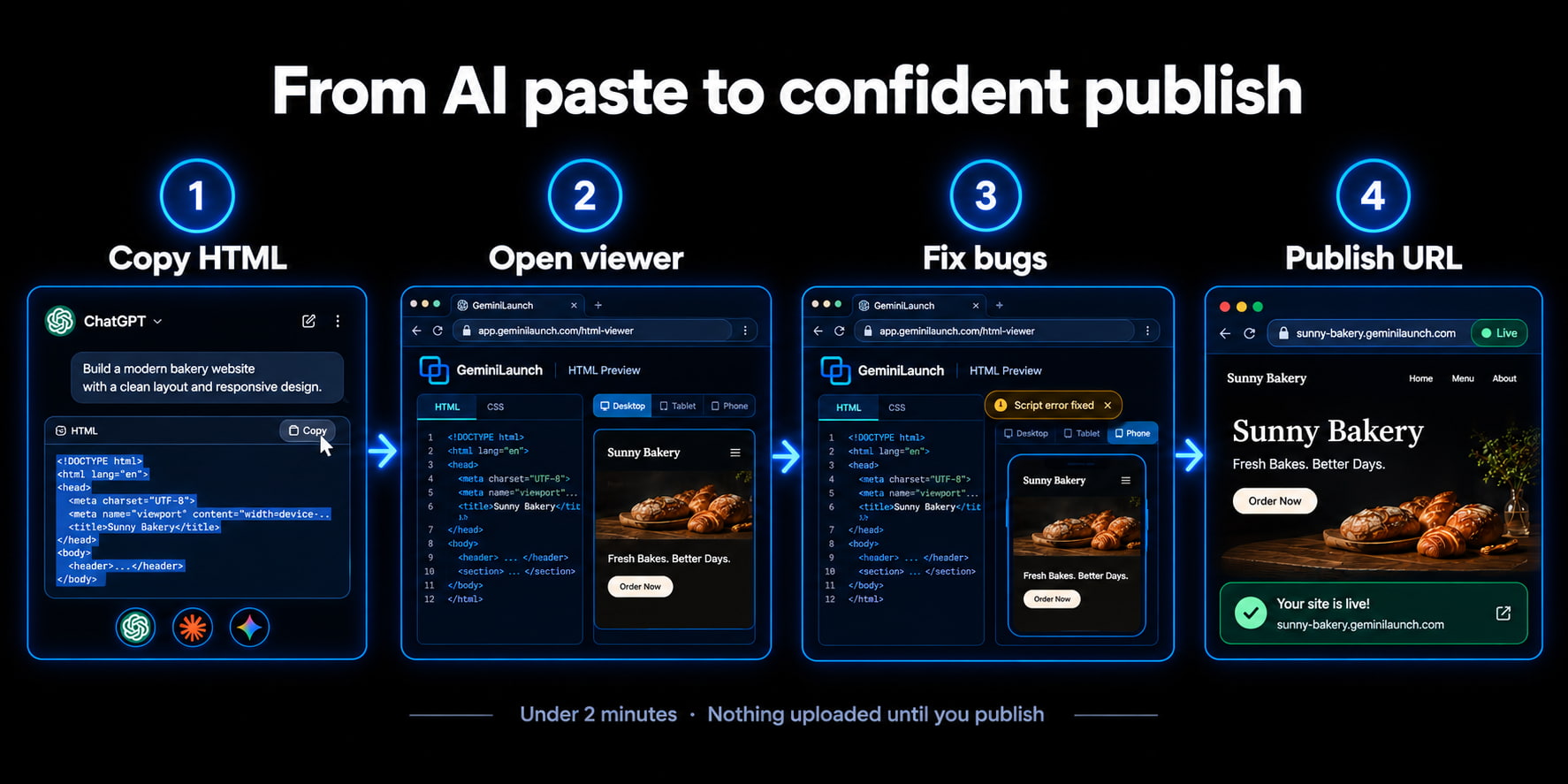
From AI paste to confident publish
Most people finish the check in under two minutes. Publishing takes another minute when you are ready.
Copy the HTML from your AI tool
Ask ChatGPT, Claude, or Gemini for a complete page — ideally one HTML file with CSS (and JS if needed) inline or in the same paste. Select all and copy. If you already have an .html file on disk, you can open that instead of pasting.
Tip: Prompt pattern: "Give me a single complete HTML file, mobile-friendly, with all CSS in a style tag. No markdown fences."
Open the free HTML viewer
Go to the GeminiLaunch HTML viewer online. No account, no upload to a server — the code stays in your browser. Paste into the editor, or open your .html file. The preview updates as you type.
Tip: Use the Desktop / Tablet / Phone toggles. Chat previews usually hide mobile layout bugs.
Fix what breaks in a real browser
Watch for blank sections, overlapping text, console script errors, and buttons that do nothing. Edit in the viewer until the page looks right on phone width. That is faster than publishing, finding a bug, and republishing.
Tip: If the viewer shows a script error banner, fix that first — a broken script often looks like a “design” problem.
Publish when you are ready to share
A viewer is only for you. When the page looks right, publish the same code on GeminiLaunch for a public HTTPS URL (free subdomain). Connect yourbrand.com later from Lite if you need a custom domain.
Tip: Publishing is the share step. Previewing is the quality step. Do both — in that order.
Avoid these
Common mistakes when testing AI HTML
Treating the chat canvas as the final site
Artifacts and Canvases are great for drafting. They are not a stable public URL, and they do not match every real phone browser.
Publishing the first paste without a browser check
You then spend the next hour fixing live. Two minutes in an HTML viewer usually catches the same issues offline.
Confusing “preview” with “client link”
A browser HTML viewer is private. A published GeminiLaunch URL (or a folder upload) is what you send to someone else.
Pasting a React fragment with no HTML shell
Many AI replies omit <!DOCTYPE html> and a body. Ask for a complete document, or wrap the fragment, before you judge the layout.
Be fair
When you can skip the HTML viewer
You already previewed with a local static server and trust the build
The project is a multi-file ZIP — use folder upload instead of paste
You are throwing away the page in an hour and do not care about polish
You publish via MCP from Claude or ChatGPT and iterate on a paid plan
For a single AI-generated HTML page you have not opened outside chat yet, the viewer is the cheapest insurance. When you are ready to go live, follow how to publish an AI-generated website or host an HTML file online free.
Related guide
Publish an AI website free
After the preview looks right — go live in minutes.
Read the guideFAQ
Frequently asked questions
Common questions about previewing AI HTML before hosting.
How do I preview AI-generated HTML online before publishing?
Copy the HTML from ChatGPT, Claude, or Gemini into the free GeminiLaunch HTML viewer (or open an .html file). Check desktop and phone widths, fix errors in the editor, then publish when it looks right. Nothing is uploaded to a server during preview.
Is there a free HTML viewer online with no signup?
Yes. GeminiLaunch’s HTML preview tool runs entirely in your browser — no account, no ads wall for the basic viewer, and the code never leaves your device until you choose to publish.
Why does my ChatGPT HTML look wrong after I host it?
Chat UIs often hide overflow, use different default fonts, or soft-fail scripts. A real browser (or an online HTML viewer) shows the same issues you will see on a live URL.
Is an HTML preview the same as publishing a website?
No. Preview is for you, on your machine. Publishing creates a public HTTPS address others can open. Use preview to quality-check; use publish to share.
Can I preview Claude or Gemini HTML the same way?
Yes. Any HTML string or .html file works in the viewer. The workflow is identical: paste or open file → check mobile → publish when ready.
What if I have a ZIP or multi-file site?
The browser viewer is built for paste or a single HTML file. For folders and builds, upload a ZIP/folder to GeminiLaunch or fix locally with a static preview, then publish.
Does the HTML viewer store my code on GeminiLaunch servers?
No. Preview runs locally in your browser. Optional local draft storage may keep a copy on your device so a reload does not wipe the editor — that is still not a public site.
When should I just publish instead of previewing?
If the page is a tiny throwaway link and you do not care about polish, publish is fine. For anything you will send to a client or put on a domain, preview first.
Like this guide? Make GeminiLaunch a preferred source.
Get our hosting and deployment guides surfaced first in your Google results, AI Overviews, and Top Stories.
Check the page — then put it on a URL
Start with the free HTML viewer. When the render looks right on mobile, publish free on GeminiLaunch and share the link.