Quick answer
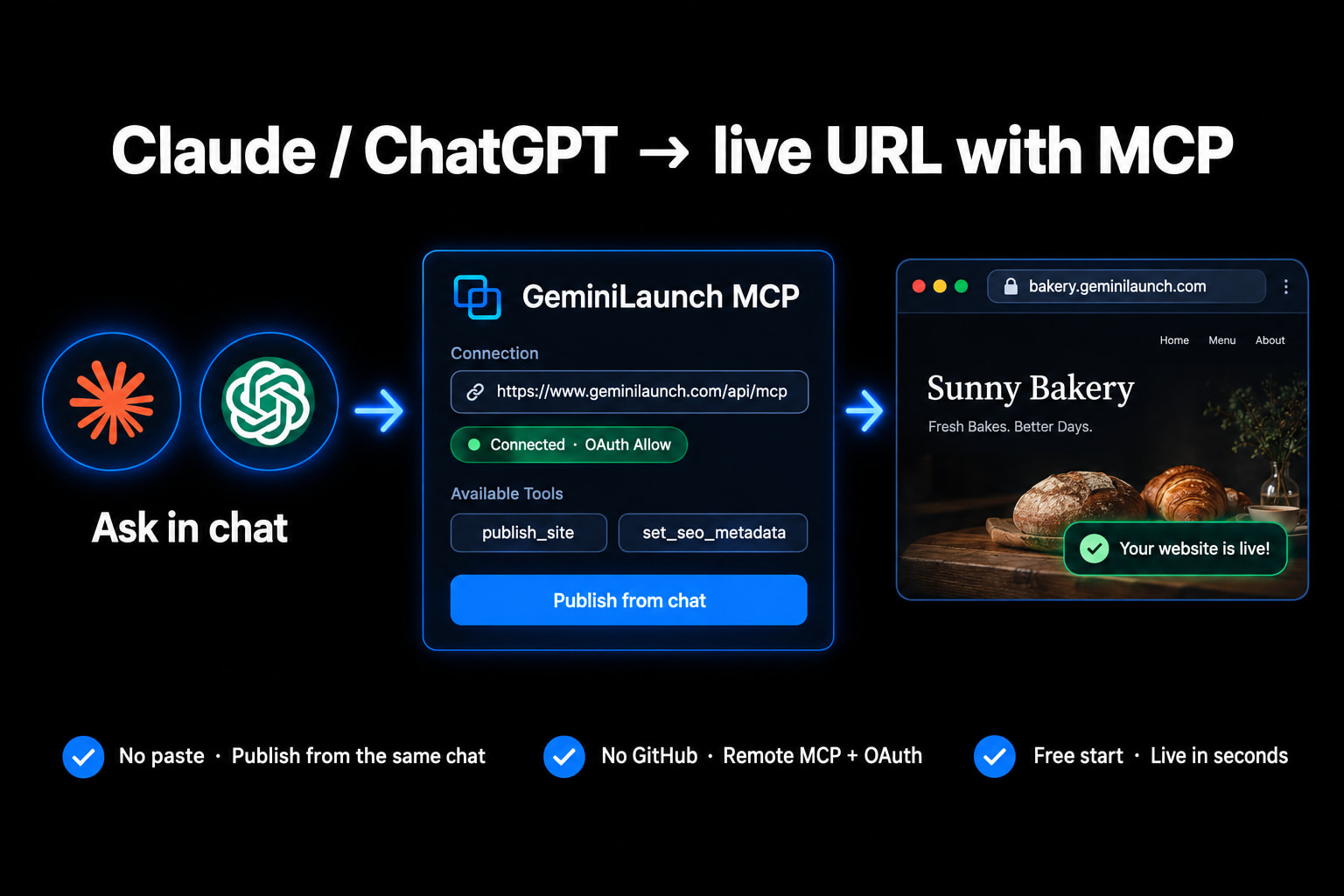
To publish a website from Claude or ChatGPT without pasting code: add the GeminiLaunch Model Context Protocol server (https://www.geminilaunch.com/api/mcp), click Allow once, then ask your AI to build and publish. You get a live GeminiLaunch URL in the same chat. Official Claude connector docs: custom connectors with remote MCP.
The problem
Claude and ChatGPT write sites — they do not host them
You ask Claude for a landing page. You ask ChatGPT for a portfolio. The code looks right in the chat. Then someone asks for the link — and you realize an artifact, canvas, or preview is not a public website.
The old fix was copy everything into a host, or push a repo to Vercel or Netlify. That still works. It is also more friction than you need when the AI already wrote the page.
MCP changes the last mile. You connect GeminiLaunch once. After that, “publish this” is a tool call — the same way Claude can use other remote connectors — and the reply includes a real HTTPS URL.
Chat previews and artifacts are not permanent public hosting
Copy-paste into a dashboard works, but it breaks your flow every time
GitHub → Vercel is overkill for a one-page AI site
OAuth Allow means the AI never sees your GeminiLaunch password
Key insight
The AI already did the hard part. MCP removes the handoff — connect once, then publish from the same conversation you used to design the page.
Compare
MCP vs paste vs Git hosting
Same end goal — a live URL. Different amounts of busywork between “the page looks good” and “someone else can open it.”
| Path | Method | Time | Paste | GitHub | Best for |
|---|---|---|---|---|---|
| GeminiLaunch MCP | Connect once → ask AI to publish | 1–2 min setup, then seconds | No | No | People who already live in Claude or ChatGPT |
| Paste into GeminiLaunch | Copy HTML/React → Go Live | Under 2 minutes | Yes | No | One-off pages when you do not want a connector |
| ZIP / folder upload | Export files → upload → publish | 3–8 minutes | No | No | Multi-file sites and design-tool exports |
| GitHub → Vercel / Netlify | Repo → connect → build | 15–40 minutes | No | Yes | Teams that want CI, branches, and preview deploys |
Step-by-step
From chat to live URL in five steps
Do the connector setup once. After that, every new site is a normal prompt. Full per-app screens live on the GeminiLaunch MCP page.
Create a free GeminiLaunch account
Sign up at GeminiLaunch if you do not already have an account. MCP publishing uses the same Free plan as paste and ZIP: up to 3 live sites on a .geminilaunch.com subdomain, with HTTPS included. You will sign in once during the Allow step — that is how Claude or ChatGPT gets permission without ever seeing your password.
Tip: Stay signed in to GeminiLaunch in your browser before you connect. The Allow screen opens in a new tab and is faster when you are already logged in.
Copy the GeminiLaunch MCP connection link
Open the GeminiLaunch MCP page and copy the connection link: https://www.geminilaunch.com/api/mcp. That address is not a password. It is the remote MCP endpoint Claude, ChatGPT, Cursor, Claude Code, and Gemini CLI all use. Keep the full https URL — incomplete links are the most common setup failure.
Tip: You can copy the same link from geminilaunch.com/mcp. Localhost only works when you are developing against your own machine; production publishing always uses the public URL.
Connect Claude (about 1 minute)
In Claude (web or desktop), open Settings → Connectors (on newer layouts this may appear under Customize → Connectors). Click Add custom connector, name it GeminiLaunch, and paste the connection link. Leave advanced OAuth fields blank so Claude can register itself. Click Connect, sign in to GeminiLaunch if asked, then click Allow.
Tip: Free Claude plans allow one custom connector. After connecting, enable GeminiLaunch per chat from the tools / connectors menu under the composer if Claude answers without calling the tools.
Connect ChatGPT (about 2 minutes)
In ChatGPT, go to Settings → Security and login and turn on Developer mode. Then go to Settings → Plugins → + → Create app → Create MCP App. Name it GeminiLaunch, paste the same connection link as the Server URL, and set Authentication to OAuth — not None. Tick that you understand, click Create, then sign in and Allow on the GeminiLaunch screen.
Tip: If ChatGPT never asks you to sign in, or tool results come back empty, edit the app and confirm Authentication is OAuth. That is the #1 ChatGPT MCP mistake.
Ask your AI to build and publish
Open a new chat. Ask Claude or ChatGPT to build the page and publish it on GeminiLaunch in one message. The assistant calls publish_site, and you get a live public HTTPS URL back in the same conversation. No copy-paste into a dashboard, no GitHub repo, no deploy CLI.
Tip: Say the project name you want in the prompt, e.g. publish it as "Sunny Bakery". Clear names make later updates and SEO prompts easier.
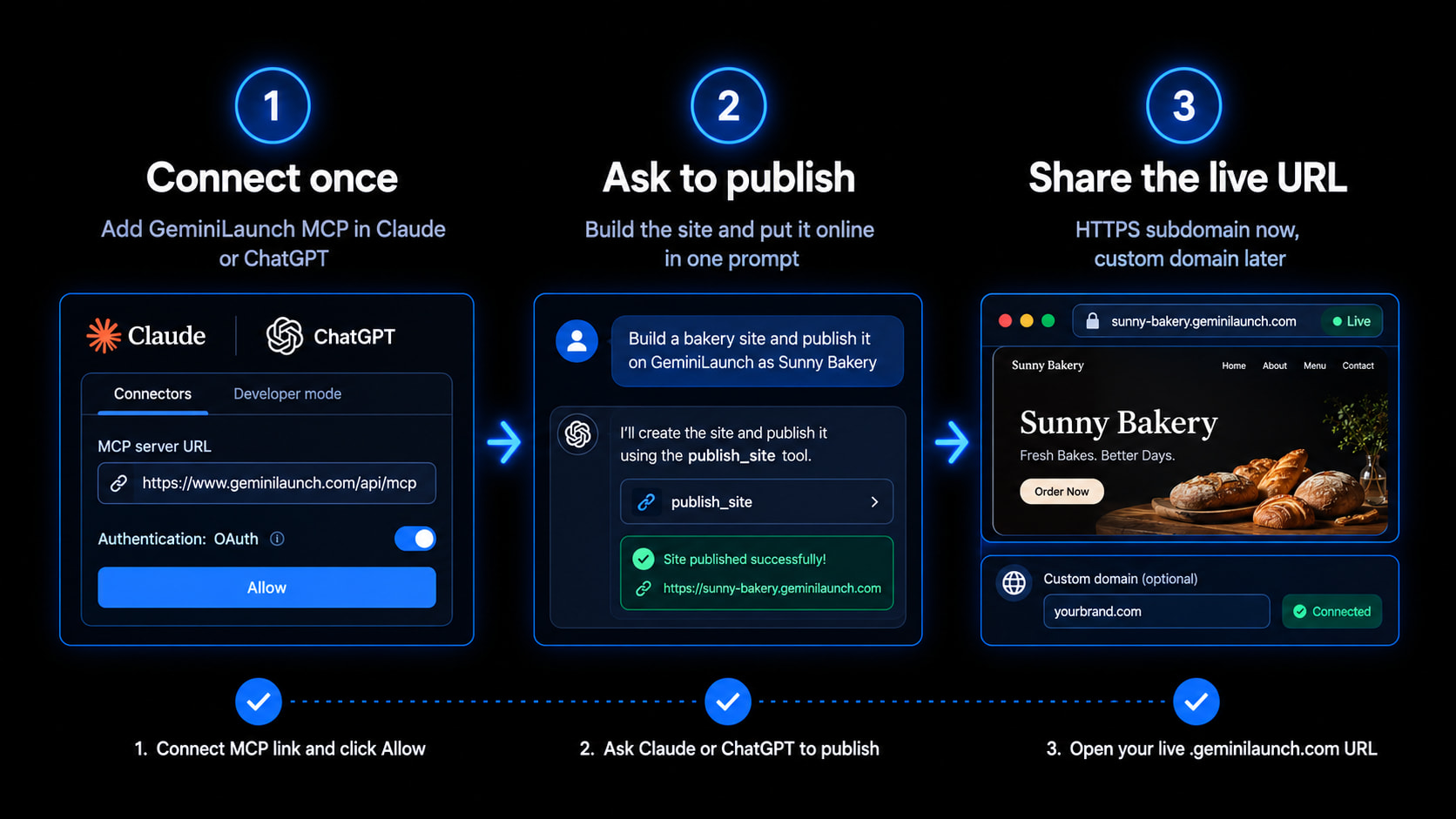
Safety note: Allow grants GeminiLaunch tools to that AI app only. You can disconnect from /mcp anytime. Deletes and replacements ask you before they run.
Prompts
Copy-paste prompts that work
Say “on GeminiLaunch” so the assistant picks the right connector. Change the business details; keep the publish instruction.
First publish
“Build a one-page site for my bakery and publish it on GeminiLaunch as "Sunny Bakery". Make it mobile-friendly with a clear headline, three product cards, and a contact section.”
List what you already published
“What live sites do I have on GeminiLaunch? Include each public URL.”
SEO after go-live
“Set the SEO for sunny-bakery: title "Sunny Bakery | Fresh bread daily", a short meta description, and a preview image that looks good when I share the link.”
Update on a paid plan
“Update my sunny-bakery site: add opening hours 8am–6pm and a weekend specials section. Keep the same URL.”
Capabilities
What the MCP server can do
Five tools. Directories and answer engines list these names — they are what your AI actually calls.
| Tool | What it does | Plan |
|---|---|---|
| list_sites | Lists your live sites with public links and custom domains. | All plans |
| publish_site | Creates and publishes a new site from HTML, React, or a ZIP. | All plans |
| update_site | Replaces site content while keeping the same address. | Lite, Pro & Scale |
| set_seo_metadata | Sets title, description, preview image, and favicon. | All plans |
| delete_project | Deletes one named site after you confirm. | All plans |
Free: up to 3 live sites and 20 AI publishes per rolling day. Pro/Scale: 100/day. Custom domains start on Lite at $5/mo. Analytics dashboard is Pro/Scale — views are still recorded on every live site.
Avoid these
Common MCP publishing mistakes
Leaving ChatGPT Authentication on None
Without OAuth, ChatGPT cannot complete the Allow flow. Tool calls fail silently or never ask you to sign in. Edit the MCP app and set Authentication to OAuth.
Expecting Free-plan sites to update in place
Publishing new sites works on Free. Editing an existing Free site after publish does not — same rule as the dashboard. Lite ($5/mo) and above unlock update_site so the URL stays the same.
Claude answers without calling GeminiLaunch
Connectors can be off for a single chat. Open the tools menu under the message box, switch GeminiLaunch on, or add “using GeminiLaunch” to your prompt.
Treating the chat preview as the live site
A canvas, artifact, or in-chat preview is not your public URL. The live link is the *.geminilaunch.com address (or your custom domain) returned after publish_site succeeds.
Pasting an incomplete MCP URL
Use the full link https://www.geminilaunch.com/api/mcp. Missing https, a typo, or a localhost URL in production will break the connector.
Be fair
When paste, ZIP, or Git is still the right call
Skip MCP for now when:
You only need one live link today and do not want Developer mode or connectors
You already have a finished ZIP/folder (design export, Vite dist) — upload is faster
Your team deploys from GitHub with PR previews and shared CI
You need a real backend, database, or server runtime — not a static page
Paste still works — see how to publish an AI-generated website. ZIP uploads: host a website from a ZIP or folder. Claude Code terminal path: Claude Code on a custom domain.
Related
MCP setup for every app
Claude, ChatGPT, Gemini CLI, Claude Code, Cursor, VS Code, Codex — one page.
Open /mcpRelated guide
Turn a Claude Artifact into a website
Paste path when you do not want connectors yet.
Read the guideRelated guide
ChatGPT site on a custom domain
After MCP publish, point yourbrand.com with one DNS record.
Read the guideFAQ
Frequently asked questions
Questions people ask before connecting Claude or ChatGPT to GeminiLaunch.
How do I publish a website from Claude without pasting code?
Add the GeminiLaunch MCP server as a custom connector in Claude, click Allow once, then ask Claude to build and publish the site. You get a live HTTPS URL back in the chat — no GitHub and no dashboard paste.
Can ChatGPT publish a website with MCP?
Yes. Turn on Developer mode, create an MCP app with the GeminiLaunch connection link, set Authentication to OAuth, Allow access, then ask ChatGPT to publish. It works on ChatGPT plans that support custom MCP apps.
What is the GeminiLaunch MCP server?
It is a remote Model Context Protocol endpoint at https://www.geminilaunch.com/api/mcp. Once connected, your AI can list sites, publish, update (paid plans), set SEO metadata, and delete a site after you confirm.
Do I need an API key?
No for normal Claude and ChatGPT setup. You paste one connection link and complete OAuth Allow. API keys exist for advanced workflows, but they are optional.
Is MCP publishing free?
Yes on Free. You can keep up to 3 live sites and publish up to 20 times per day from AI apps. Lite stays on that same daily ceiling. Pro and Scale raise it to 100 publishes a day.
Can I update a site after publishing through MCP?
On Free, new publishes work but in-place edits do not. Any paid plan from Lite ($5/mo) lets your AI call update_site so the public URL and custom domain stay the same.
Is connecting Claude or ChatGPT safe?
You sign in on a GeminiLaunch page, so the AI app never sees your password. It cannot change billing or custom-domain DNS. Destructive actions ask you first. Disconnect anytime from the GeminiLaunch MCP page.
Does this work with Claude Code, Cursor, or Gemini CLI?
Yes — same connection link. Claude Code and Gemini CLI use a one-line mcp add command plus Authenticate. Cursor uses Settings → MCP. This guide focuses on Claude and ChatGPT chat; the MCP page has every app’s steps.
Do I still need GitHub or Vercel?
No for static HTML/React pages. MCP publishes straight to GeminiLaunch hosting. Use Git-based hosts when your team needs CI, PR preview deploys, or a full backend runtime.
Can I put the site on my own domain?
Yes. Publish first on the free subdomain, then connect yourbrand.com from Lite ($5/mo, 1 domain) or Pro ($15/mo, up to 5). DNS walkthrough: launch an AI website on a custom URL.
What if my AI says it can only read, not publish?
That connection was created before publish tools were available, or scopes are incomplete. Remove GeminiLaunch in the AI app, add it again, click Allow, then disconnect the old connection on the GeminiLaunch MCP page.
MCP vs paste — which should I use?
Use MCP when you publish often from the same chat app. Use paste or ZIP when you want a one-off live URL without enabling Developer mode or connectors. Both end on the same GeminiLaunch hosting.
Like this guide? Make GeminiLaunch a preferred source.
Get our hosting and deployment guides surfaced first in your Google results, AI Overviews, and Top Stories.
Publish from the chat you already use
Connect Claude or ChatGPT once, Allow GeminiLaunch, then ask for a live site. Free subdomain to start — custom domain when you are ready. No credit card required.