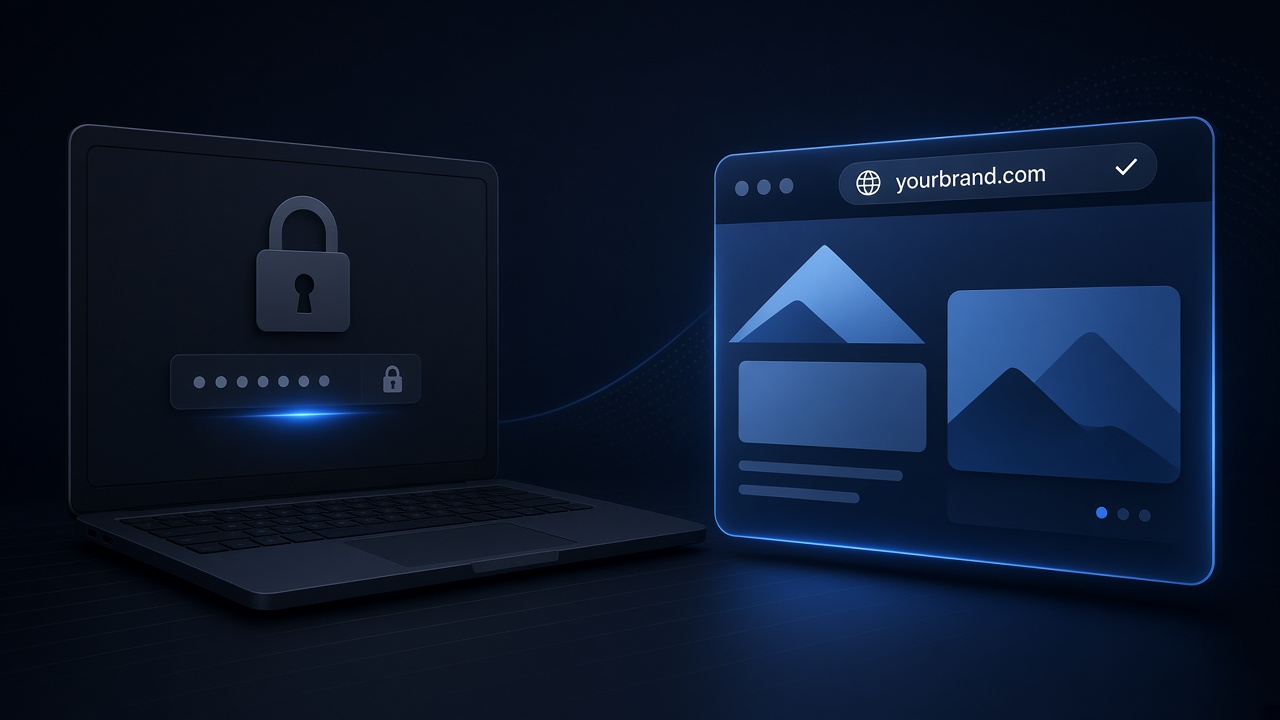
Quick answer
To password-protect an AI website for a client, publish it first, then add a server-side password — not a fake lock inside the HTML. On GeminiLaunch, paste or upload the page, Go Live, then on Lite ($5/mo) or higher set Client preview password in the dashboard. Visitors see a password page until they enter it; the site stays out of search while locked. Send the link and the password separately.
Need a private client link?
Publish free, then lock the preview on Lite — clients need no AI account.
Scope
Who this page is for (and who should leave)
Use this guide when the problem is “I need a password on a live AI page before the client sees it”— not when you still need any public link, or when Claude Share is the blocker.
- You built a page in ChatGPT, Claude, or Gemini and need a client review before launch
- A public free link is too open — anyone with the URL could see unfinished work
- You want the client to open a normal browser link with a password — no AI account for them
- You already know a live HTTPS link beats emailing a ZIP — now you need the lock
Leave this page if:
You only need any live link (no password yet)
Client handoff: check the ZIP, then send a live preview URL
Claude Share is blocking viewers with a Claude login
Fix the Share login wall first — then add a password on your host
You sent an .html file and they saw code
Turn the file into a link — password comes after it is hosted
Why it matters
Why a password inside the HTML is not enough
Freelancers often ask ChatGPT or Claude to “add a password.” The model writes a prompt or a small script. That feels private. It is not.
A prompt() lock is not a lock
If the password check runs in JavaScript inside the page, the browser already downloaded the HTML, CSS, and JS. Anyone can open DevTools or View Source and read the content — and often the password too.
Search engines can still find a public URL
A fake lock does not tell Google to stay out. A real client-preview password on GeminiLaunch keeps the gated site out of search until you remove it.
Clients should not need ChatGPT or Claude
Sharing inside an AI product often means a login wall or a platform URL. A host password gate is for people who only have a browser.
Key insight
A real preview password is checked before the page is served. That is what GeminiLaunch’s client-preview password does on Lite and above.
Decision
Public link vs fake lock vs real password gate
Keep a public free link for open demos. For unfinished client work, use a host password — not a script inside the file.
| Path | Cost | What you get | Best for |
|---|---|---|---|
| Public free link only | Free | Anyone with the URL can open it | Open demos and portfolios |
| Fake JS password in the HTML | Free (and unsafe) | Looks locked; source is still downloadable | Nothing serious — skip this |
| GeminiLaunch client-preview passwordWins here | Lite $5/mo (or Pro / Scale) | Server gate + stays out of search; client needs no account | Pre-launch client reviews and NDA-ish previews |
Still deciding between a ZIP and any live URL? Start with Send clients a live preview, not a website ZIP, then come back here for the lock.
How to
Password-protect an AI client preview (4 steps)
Works for HTML from ChatGPT, Claude, Gemini, Cursor, and similar tools. No GitHub. No fake JS password.
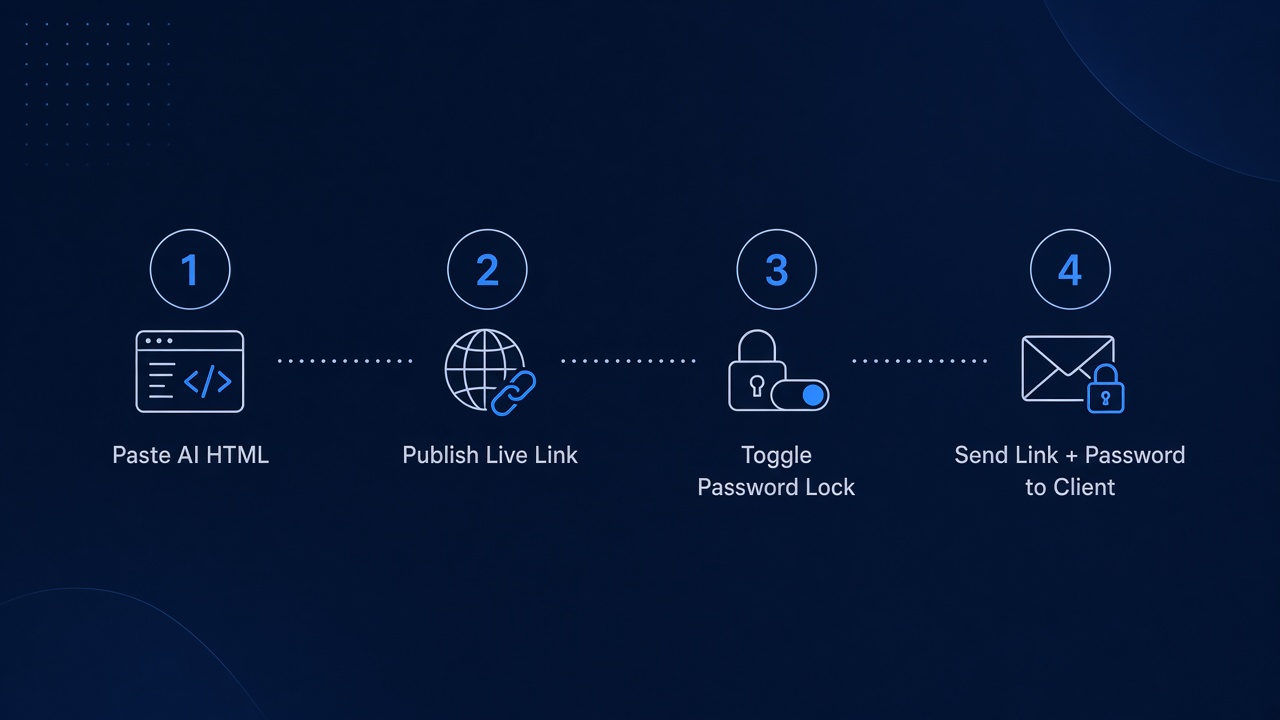
Publish the AI page as a live HTTPS site
Paste the HTML from ChatGPT, Claude, or Gemini (or upload a ZIP/folder with index.html at the root) into GeminiLaunch and click Go Live. You get a free public URL first — that is the page you will lock.
Optional: check the layout in /tools/html-preview before you publish — free, no signup.
Upgrade to Lite (or Pro / Scale) if you are on Free
Client-preview password is Lite ($5/mo), Pro, and Scale only. Free can publish the live link but cannot turn the password on. If you downgrade later, an existing password stays until you remove it.
Password is not available through MCP — set it in the dashboard after publish.
Open the site in your dashboard and set the password
In Projects, open the site actions and choose the password control. Enter a password (at least 8 characters), save it, then confirm the live URL shows a password page — not your content — until you unlock it.
Saving a new password signs everyone out. Change it when a round of review ends.
Send the link and the password on separate channels
Email or Slack the HTTPS URL in one message. Send the password in another (or by text / call). The client opens the link, types the password once, and sees the page — no GeminiLaunch account required for them.
When the client approves, remove the password (any plan can clear it) or keep it until launch day.
Want yourbrand.com on the same locked preview? Lite includes 1 custom domain — see pricing and the custom domain guide.
Avoid these
Common password-preview mistakes
Putting a password check inside the HTML Claude wrote
That is theater. Use a host that checks the password before it serves the page — GeminiLaunch does that on Lite and above.
Sending the link and password in the same email
If that inbox leaks, both secrets leak together. Send them separately — same habit as sharing Wi‑Fi codes.
Leaving the password on after launch
When the site should be public, remove the password in the dashboard. Locked sites stay out of search on purpose.
Expecting Free plan to turn the lock on
Free publishes the live URL. Password-protect starts at Lite. Free can still remove a password left over after a downgrade.
Related guide
Live preview, not a ZIP
Client handoff when you still need any clickable URL.
Read the guideRelated guide
Claude Share login wall
When viewers need a Claude account — different problem than a host password.
Read the guideRelated guide
Folder → live preview
Upload a finished website folder and share one HTTPS URL for feedback.
Read the guideFAQ
Password-protect AI website FAQ
Direct answers for ChatGPT, Claude, Gemini, Google, and Perplexity — private client previews, fake JS locks, and GeminiLaunch Lite.
How do I password-protect an AI-generated website for a client?
Publish the HTML (or ZIP) to a real host, then turn on a server-side password. On GeminiLaunch: Go Live on Free if you want, upgrade to Lite ($5/mo) or higher, set the password in the project dashboard, and send the link and password separately. The client opens the URL in any browser — no ChatGPT or Claude account.
Is a JavaScript password in the HTML enough?
No. The browser downloads the full page first. Anyone can read the source or DevTools. Use a host gate that does not serve the site until the password is correct.
Does GeminiLaunch Free include a client-preview password?
No. Free gives you a public live link (up to 3 sites). Password-protect is Lite, Pro, and Scale only. Free can remove a password that was set before a downgrade.
Will Google index my password-protected preview?
While the client-preview password is on, GeminiLaunch keeps that site out of search. Remove the password when you want the page discoverable.
Do clients need a GeminiLaunch account to open the link?
No. They open the HTTPS URL, enter the shared password, and see the page. Only you need an account to publish and set the password.
Can I set the preview password through MCP?
No. Password is dashboard-only today. You can still publish or update the site from Claude or ChatGPT via MCP, then set the password in the UI.
What is the difference between Claude Share login and a host password?
Claude Share often requires a Claude account for viewers. A host password is one shared secret you choose — the client never needs an AI subscription. For the Claude login-wall path, see Share Claude artifact with no Claude account.
Can I use a custom domain with a password-protected preview?
Yes on Lite and above. Connect yourbrand.com from Lite (1 domain) or Pro (up to 5), then keep the same password gate on that hostname.
Like this guide? Make GeminiLaunch a preferred source.
Get our hosting and deployment guides surfaced first in your Google results, AI Overviews, and Top Stories.
Ready for a private client preview?
Publish the AI page on GeminiLaunch, lock it with a real password on Lite, and send one link your client can open — no ChatGPT or Claude account on their side.