Why use AI for an invitation website
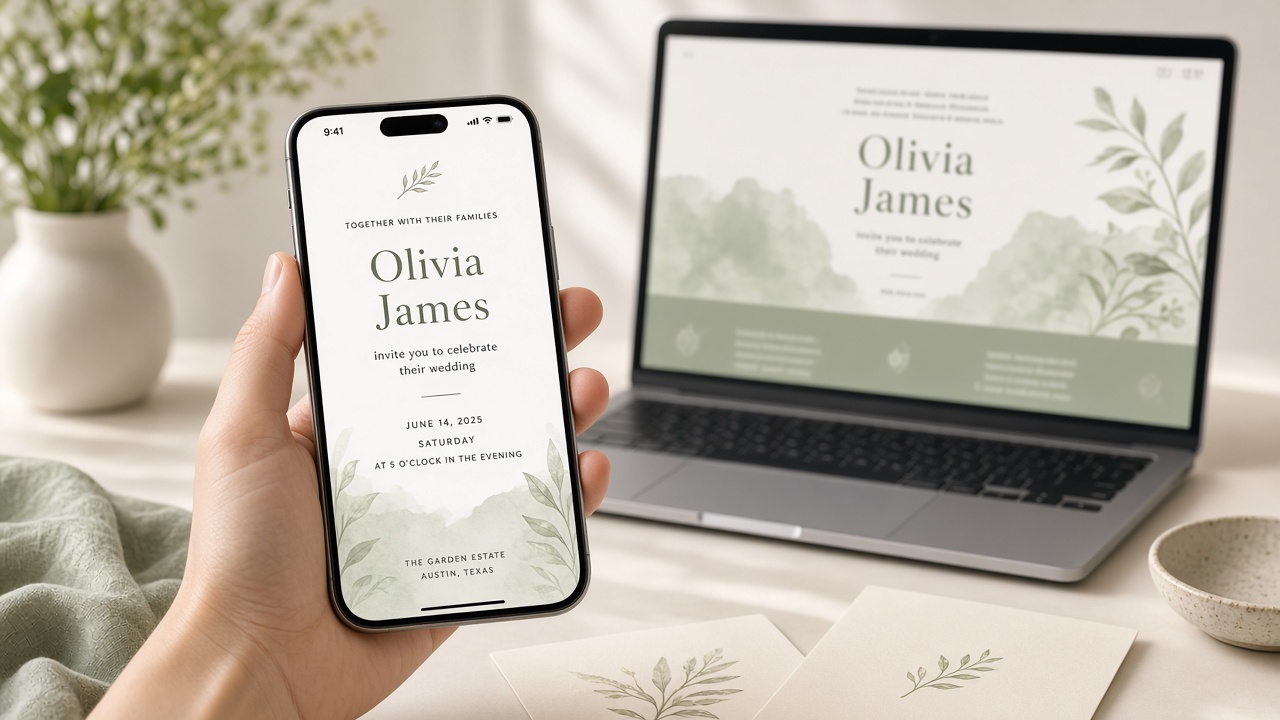
A website invitation holds more than a card can. Guests can see the schedule, tap for directions and reply, all from one link. You can also share it with a single message instead of mailing paper to everyone.
Template builders give you a fixed layout. With ChatGPT you describe the look you want, so your page matches your colors, theme and style. The only missing piece is a place to put the page online. ChatGPT can write the code, but it can’t give you a public link.
That is where GeminiLaunch comes in. You paste the code, click publish and get a live HTTPS link. If you want the general version of this workflow, read our guide on hosting a ChatGPT-generated website for free.
What to put on your invitation website
Gather these details before you open ChatGPT. It saves you many rounds of edits.
- Names and the event title (for example, “Sara & Ali are getting married”)
- Date, start time and time zone
- Venue name, full address and a Google Maps link
- Schedule for the day (ceremony, dinner, party)
- Dress code and any notes for guests
- RSVP deadline and how guests should reply
- Contact name and phone number for questions
- Gift or registry note, if you want one
Step by step: from idea to live link
Step 1
Write down your event details
Open a notes app and list everything from the checklist above. The more exact your details are, the fewer fixes you need later. Add the exact spelling of names, the full address and the time zone.
Double check the date and venue now. Free sites can’t be edited after they’re published (more on this below).
Step 2
Send ChatGPT a clear prompt
Paste your details into one of the prompts below. Ask for a single HTML file with the CSS and JavaScript inside it. That is the format GeminiLaunch publishes with one paste.
Always say “mobile first”. Most guests will open your link on a phone.
Step 3
Fix the design in the same chat
Ask for changes in plain words: “make the heading bigger”, “use sage green and cream”, “add a countdown to the wedding day”. Keep asking until you like it. Then ask ChatGPT to give you the full final code again.
Ask for the complete file each time. Partial snippets are the most common cause of broken pages.
Step 4
Preview it before you publish
Paste the code into the free HTML preview tool. Check the page on a phone-sized window and click every button, link and map.
Look for broken buttons, cut-off text and spelling mistakes in names.
Step 5
Publish it free on GeminiLaunch
Paste the code into GeminiLaunch and click publish. You get a live HTTPS link on a free GeminiLaunch subdomain. Free SSL is included, so the page opens securely on every phone.
Open the link on your own phone first, then send it to one friend as a test.
Step 6
Share the link
Send the link in WhatsApp, text or email. For printed invitations, turn the link into a QR code and print it on the card. Use the social preview checker to make sure the link shows a nice title and image when shared.
Add a short, friendly message with the link so guests know it’s the official invite.
Use the free HTML preview tool for step 4 and the social preview checker for step 6. Both are free and need no signup.
Copy-paste prompts for ChatGPT
Replace everything in [square brackets] with your own details, then paste the prompt into ChatGPT.
Wedding invitation prompt
Create a wedding invitation website as ONE complete HTML file. Put all CSS and JavaScript inside the same file. No external frameworks, no build step.

Style: elegant, romantic, cream background with sage green accents. Use Google Fonts: Playfair Display for headings and Lato for body text.

Mobile first. It must look great on a phone.

Sections:
1. Hero with our names, the date and a short welcome line
2. Countdown timer to the wedding day
3. Our story (3 short paragraphs)
4. Schedule: ceremony 4:00 PM, dinner 6:30 PM, party 8:30 PM
5. Venue with address and a "Get directions" button linking to Google Maps
6. Dress code and guest notes
7. RSVP section with a button that opens a link I will provide
8. Footer with contact info

Details:
- Names: [Sara and Ali]
- Date: [June 14, 2027], time zone [your time zone]
- Venue: [venue name, full address]
- Dress code: [formal / semi-formal]
- RSVP link: [your Google Form link]
- Contact: [name and phone]

Add <meta name="robots" content="noindex"> and a viewport meta tag. Add a title and meta description. Return the complete code only.
Event invitation prompt (birthday, shower, party)
Create an event invitation website as ONE complete HTML file. All CSS and JavaScript must be inside the same file. No frameworks, no build step.

Event: [Maya's 30th birthday party]
Date and time: [Saturday, March 6, 2027, 7:00 PM]
Place: [venue name and address]
Theme and colors: [retro disco, purple and gold]

Include:
- A bold hero with the event name and date
- An "Add to calendar" button that opens a Google Calendar event link
- Details section with time, place and a Google Maps button
- What to bring / dress code
- RSVP button linking to [your WhatsApp or Google Form link]
- Short FAQ (parking, kids, plus ones)

Mobile first, fast loading, no external images. Add a viewport meta tag, a title and a meta description. Return the complete code only.
Want a different look? Add one line such as “Make it modern and minimal, black and white” or “Use a beach theme with soft blue colors”. Small style changes make a big difference.
Adding photos to your invitation
Pasted single-file HTML can’t include photos from your computer. You have two simple options.
- Upload a folder or ZIP. Put index.html and an images folder in one ZIP and upload it. The Free plan allows up to 5 MB per site, so compress your photos first.
- Use no photos. Ask ChatGPT for a design built with colors, patterns and fonts only. It loads fast and always works.
Use 3 to 6 photos at most, and keep each one under 300 KB. Squoosh is a free tool for shrinking images in your browser. Not sure your ZIP is set up right? Try the free ZIP checker before you upload.
How to handle RSVPs
An invitation page is a static website. It shows information, but it doesn’t store replies. The simplest fix is to send guests to a place that does.
- Google Form. Create a form with name, attending yes or no, and guest count. Paste the form link in your prompt as the RSVP link.
- WhatsApp or text. Ask ChatGPT for a button that opens a chat with your number. This works well for small events.
- Email. Add a “Reply by email” button that opens a pre-filled email to you.
Keeping your invitation private
Anyone who has your link can open it, so treat the link like an invitation you hand out. Three easy steps help.
- Ask ChatGPT to add a
noindextag. It asks search engines not to list your page. Google explains how this works in its noindex documentation. - Leave out your home address and any private phone numbers.
- For extra control, add a password on a paid plan. Our guide on password-protecting an AI website shows how.
Decision
How this compares with other options
There is no single best choice. Pick the one that fits how much control and setup you want.
ChatGPT + GeminiLaunch
Best fit here- Design
- Fully custom. You decide everything.
- Setup
- Paste and publish, about 15 minutes
- Cost
- Free link. Paid plans for editing and your own domain
- Best for
- People who want a unique design and a simple live link
Wedding website builders
- Design
- Fixed templates and layouts
- Setup
- Account, template and form-filling
- Cost
- Varies by service. Check each site
- Best for
- Couples who want built-in RSVP and registry tools
Netlify or Vercel
- Design
- Fully custom
- Setup
- Built for developers. Accounts, files or a Git repo
- Cost
- Free tiers available. Check their terms
- Best for
- Developers who already use these tools
If you’re weighing GeminiLaunch against developer hosts, see our comparisons with Netlify and Vercel.
Free or paid: what you need for an invitation
The Free plan is enough for most invitations. It includes up to 3 live sites, free SSL and a free GeminiLaunch subdomain, with no credit card. Two things to know: free sites show a small “Powered by GeminiLaunch” badge and can’t be edited after publishing.
Choose Lite ($5/month) if you want to edit and republish the same link, remove the badge, add a password, or use your own domain such as sara-and-ali.com. You can check domain ideas with the free domain checker, and see the full details on the pricing page. Our custom URL guide covers the domain setup.
Common mistakes to avoid
Publishing before the details are final
Free sites can’t be edited after publishing. If the venue or time changes, you’d need a new site and a new link. Finish and double check everything first, or use the Lite plan ($5/mo) so you can edit and republish the same link.
Using photos that are too large
Free ZIP and folder uploads are limited to 5 MB per site. Compress your photos before you upload them. Squoosh (squoosh.app) is free and works in your browser.
Expecting the page to collect RSVPs by itself
A static invitation page can’t store replies. Link to a Google Form, WhatsApp chat or email address instead. We cover this in the RSVP section.
Forgetting to test on a phone
Most guests open invitations on their phones. Check the page on a real phone, with both Wi-Fi and mobile data.
Sharing private details on a public link
Anyone with the link can open a free site. Leave out your home address, and consider a password on a paid plan if you want to limit access.
Asking ChatGPT for partial code
If ChatGPT returns only a snippet, the page can look broken. Ask for the complete HTML file, from the first line to the last.
Frequently asked questions
Can I really make a wedding website with ChatGPT for free?
Yes. ChatGPT writes the HTML code and GeminiLaunch publishes it on a free subdomain with free SSL. You don’t need a credit card. Free sites show a small “Powered by GeminiLaunch” badge and can’t be edited after publishing.
Do I need to know how to code?
No. You describe what you want in plain words, ChatGPT writes the code, and you copy and paste it. If something looks wrong, tell ChatGPT what to fix and ask for the full file again.
Can guests RSVP on the website?
A single HTML page can’t save replies on its own. The easy fix is a button that links to a Google Form, a WhatsApp chat or an email address. Guests click it and reply there.
Can I use my own domain, like sara-and-ali.com?
Yes. Custom domains start on the Lite plan at $5/month. Publish free first, then connect your domain when you’re ready. GeminiLaunch shows you the exact DNS record to add.
Can I change the details after I publish?
On the Free plan, no. Free sites can’t be edited after publishing. On Lite, Pro and Scale you can paste new code and republish, and your link stays the same, so nothing you already shared breaks.
Will my invitation show up on Google?
Not if you ask ChatGPT to add a noindex tag, as in the prompts above. That tells search engines not to list the page. It isn’t a lock, so anyone with the link can still open it.
Does this work for birthdays, baby showers and other events?
Yes. Use the event prompt in this guide and change the theme, date and details. The publishing steps are exactly the same.
Like this guide? Make GeminiLaunch a preferred source.
Get our hosting and deployment guides surfaced first in your Google results, AI Overviews, and Top Stories.
Send your invitation link today
Paste your ChatGPT code, publish free and share one link with every guest. No coding, no GitHub and no credit card.