Quick answer
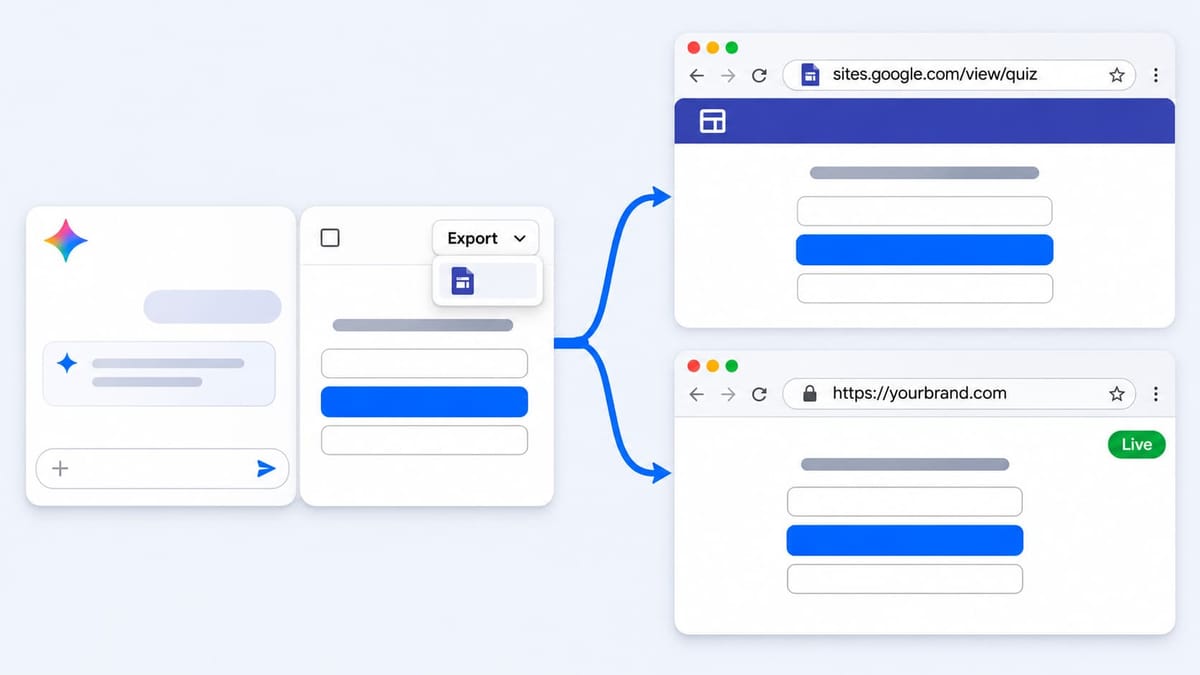
You can publish a Gemini Canvas app to Google Sites in one click. Open the app in Gemini, choose Export → Google Sites, and Google creates a private site draft with the working app inside. Click Publish, pick a web address, and choose Public or Restricted. You get a sites.google.com link. Google announced this on October 19, 2026. Need your own domain, a link that stays the same after edits, or a page outside Google account rules? Publish the code on GeminiLaunch instead. Free to start. Custom domain from Lite ($5/mo).
Want your own link instead?
Paste the Canvas code. Publish. Share a real https link, or embed it in Sites by URL.
Start here
Is this page for you?
Use this guide if your question is: “How do I get my Gemini Canvas app onto Google Sites, and is that enough?”
- You built a quiz, calculator, dashboard or small app in Gemini Canvas and want it on a web page
- You already use Google Sites for a class, club, team or small business
- You pasted Canvas code into Google Sites and the code does not run
- You want to know if Google Sites is enough, or if you need your own domain
Go to another guide if:
You only have the g.co share link and want a real website
Why the share link is not a website, and the paste-and-publish path
Gemini gave you index.html [generated with web_code_canvas tool]
What the long filename means and how to host that file
You want to compare hosts for a Gemini website
Paste-and-publish hosts vs Drop hosts vs GitHub Pages
Options
Three ways to get a Canvas app onto a web page
All three work. They give you different links, and they behave differently when you change the app later.
Way 1
Export to Google Sites
- Setup
- One click inside Gemini
- Link you get
- sites.google.com/view/your-name
- Own domain
- Possible, with extra steps
- After you edit the app
- No. Export makes a copy. Export again after edits.
- Best for
- Teachers, clubs and teams that already live in Google
Way 2
Embed code in Google Sites
- Setup
- Copy the code, paste it in Sites
- Link you get
- Your existing Google Site
- Own domain
- Same as your Site
- After you edit the app
- No. Paste the new code after edits.
- Best for
- Adding an app to a page you already have
Way 3
GeminiLaunch (then embed by URL if you want)
Most control- Setup
- Paste the code, click Go Live
- Link you get
- yoursite.geminilaunch.org or yourbrand.com
- Own domain
- Yes, from Lite ($5/mo)
- After you edit the app
- Publish again on the same project. The link stays the same.
- Best for
- Your own domain, clients, or a page outside Google
Simple rule
Your audience already lives in Google and a sites.google.com link is fine? Use Export. You need your own domain, a client-ready page, or one link that never changes? Publish on GeminiLaunch. You can also do both: publish on GeminiLaunch and embed that link in Sites by URL.
Way 1
Export to Google Sites in one click
This is the new path. Google’s announcement says it works on web, Android and iOS, for Google Workspace customers, Workspace Individual subscribers, and personal Google accounts with the Gemini app. There is no new admin setting. If you can create Google Sites, the export option appears.
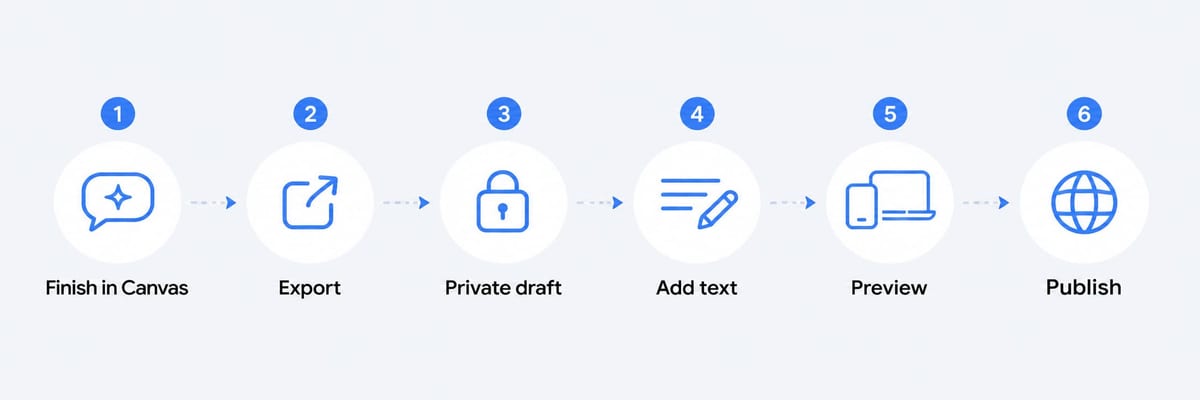
Finish the app in Gemini Canvas
Open the chat with your app. Click the buttons, try the inputs, and check it on a phone-sized window. Export copies the app as it is right now, so fix problems first.
Ask Gemini: “Make this app work well on a phone screen.” Then test it again.
Choose Export → Google Sites
On the app, open the export options and choose Google Sites. Google opens Google Sites with a new, private site draft. Your app is already inside it, and it still works.
The menu can sit in a different place on web, Android and iOS. Look for Export or Share & export on the Canvas panel.
Add a title and a short explanation
Give the site a name. Add one or two lines that tell visitors what the app does and how to use it. You can add more pages, text and images like on any Google Site.
Editing the Site does not change the app in Gemini. They are now separate copies.
Preview on phone, tablet and desktop
Click Preview and switch between the three layouts. Try every button again. If something is broken, fix it in Gemini and export again instead of fixing it in Sites.
Check the app box is tall enough. A short box cuts off the bottom of the app.
Publish and choose who can see it
Click Publish, type the web address you want, and choose Public (anyone with the link) or Restricted (only people you add). Click Publish again.
Open the link in a private browser window. That is exactly what your visitors will see.
Share the sites.google.com link
Copy the address and send it. Visitors do not need Gemini. Restricted sites ask visitors to sign in with a Google account.
Want to keep it out of Google Search? Next to Publish, click the arrow and choose “Request public search engines to not display my site.”
Publishing and visibility options are documented in Google’s Publish & share your site help page.
Way 2
Paste the code into an existing Google Site
Already have a Google Site for your class, club or business? You can add the Canvas app to any page with Embed code. This was the only way before October 2026, and it still works. Google’s Sites help explains that you can add HTML, CSS or JavaScript, and that JavaScript must be inside <script> tags and CSS inside <style> tags.
- In Gemini Canvas, open Code and copy the whole file. If Gemini made separate HTML, CSS and JavaScript files, ask it first for one file with everything inside.
- In Google Sites, open your page. In the right panel choose Insert → Embed, then open the Embed code tab.
- Paste the code. JavaScript must sit inside <script> tags and CSS inside <style> tags. Click Next, check the preview, then click Insert.
- Drag the corners of the box so the whole app is visible. Publish the site again so visitors see the change.
Sites runs your code inside a box with a fixed size. Anything that needs a server, a database or a secret key will not work there. Keep the app inside the browser.
Way 3
Publish on GeminiLaunch, then embed by URL or use your own domain
This path gives you a normal https link that you control. It also fixes the two things Sites cannot do well: a link that stays the same when you edit, and your own domain without Google’s verification steps.
- In Canvas, open Code (or Share & export → Copy contents) and copy the whole file. One index.html with CSS and JavaScript inside works best. React (app.jsx) works too.
- Create a free GeminiLaunch project, paste the code, and click Go Live. You get a public https link in seconds. No GitHub, no terminal.
- Want it inside Google Sites as well? In Sites choose Insert → Embed → By URL and paste your GeminiLaunch link. The app runs from your link, so you only update it in one place.
- Want your own domain? Upgrade to Lite ($5/mo) and connect yourbrand.com. GeminiLaunch shows the DNS record to add. No Google verification steps.
Free: up to 3 live sites, 5 MB each, with a small badge. Lite ($5/mo): edit after publishing, no badge, 1 custom domain. Pro ($15/mo): up to 5 domains.
Free checks before you share: HTML preview and the ZIP checker.
Know before you publish
What Google Sites gives you, and where it stops
Google Sites is free and easy. It also has rules. These come from Google’s own help pages, so you can plan around them.
The address is sites.google.com/view/your-name
That is fine for a class or a club. It looks less professional for a client or a business.
A custom domain is possible, but it is work
Only the site owner can connect a domain. You must prove you own it, change DNS yourself, and wait up to 48 hours. Google also warns that features that depend on a Google sign-in may stop working on a custom domain. Work and school accounts need an admin.
Restricted sites need a Google account
Public sites open for anyone. Restricted sites ask every visitor to sign in with Google, and you must add each person or group.
Export is a copy, not a live link
When you improve the app in Gemini, the Sites page does not change. You export again and replace the old one.
Gemini’s own share link is not a website either
Google’s Canvas help says shared Canvas links open only on gemini.google.com and not in the Gemini mobile app. Some sharing features are not available to users under 18.
Test AI features and saved data after export
If your app uses Gemini-powered features or saves data between users, open the published site and try them. Google documents these features for shared app links, so check they still work on your Sites page before you share it.
Sources: Google’s custom domain help, publish and share help, and the Gemini Canvas help.
Decision
When you need a real URL instead
Google Sites is the right answer for many people. Choose a real link on GeminiLaunch when one of these is true:
- You want yourbrand.com without domain verification steps or sign-in side effects
- You are handing the app to a client who should not see Google branding
- You want one link that stays the same every time you improve the app
- You want a page that opens for anyone, with no Google account rules
- Your app is React (app.jsx) or needs a file and folder structure
- You want a password-protected preview before the public launch
The full paste-and-publish walkthrough is in turn a Gemini Canvas into a website. Client previews with a password are covered in password-protect an AI website.
Bahasa Indonesia
Cara menempelkan aplikasi buatan Gemini Canvas ke Google Sites agar kodenya berjalan
Ringkasan singkat untuk pembaca berbahasa Indonesia. Panduan lengkap dalam bahasa Inggris ada di atas.
- Cara tercepat: buka aplikasi di Gemini Canvas, pilih Export → Google Sites. Google membuat draf situs pribadi dengan aplikasi yang sudah berjalan. Klik Publish, pilih alamat web, lalu pilih Public atau Restricted.
- Cara manual: di Google Sites pilih Insert → Embed → Embed code. Tempel seluruh kode dari Canvas, klik Next, lalu Insert. JavaScript harus berada di dalam tag <script> dan CSS di dalam tag <style>.
- Agar kodenya berjalan: minta Gemini membuat satu file saja, hapus API key dan panggilan ke server, lalu perbesar kotak embed supaya aplikasi tidak terpotong.
- Export dan Embed code membuat salinan. Jika Anda mengubah aplikasi di Gemini, export atau tempel ulang kodenya.
- Butuh domain sendiri? Publikasikan kodenya di GeminiLaunch (gratis), lalu sematkan lewat Insert → Embed → By URL, atau hubungkan domain Anda dari paket Lite ($5/bulan).
Avoid these
Common mistakes
Pasting only part of the Canvas code
A half copy loses the styles or the script, and the box in Sites stays blank. Copy the whole file in one go. Ask Gemini for one file first.
Leaving API keys or server calls in the code
Google Sites and any static host only run what is inside the page. Calls that need a secret key or a server will fail. Ask Gemini to remove them or move the logic into the page.
Making the embed box too small
Sites puts your code inside a box with a fixed size. If the box is short, the bottom of the app is cut off. Drag the box taller and check on a phone.
Expecting the Sites page to update itself
Export and Embed code both make a copy. After you change the app in Gemini, export again or paste the new code again.
Sending a Restricted link to people without Google accounts
They will hit a sign-in wall. Use Public, or publish the app on a normal host and send that link.
Copy-paste
Useful Gemini prompts
Use these in the same Canvas chat before you export or copy the code.
One file for Embed code
Give me this app as one complete index.html with all CSS and JavaScript inline. No separate files. No external API keys.
Fit the Google Sites box
Make this app fully responsive so it fits a box about 800 pixels wide and 600 pixels tall, and also works on a phone screen.
Remove backend needs
Remove anything that needs a server, a database or a secret key. Keep everything working inside the browser.
Related guide
Turn Gemini Canvas into a website
Why the g.co share link is not a website, and the full publish path.
Read the guideRelated guide
web_code_canvas index.html explained
What the long Gemini filename means, plus app.jsx and file_gen.
Read the guideFAQ
Gemini Canvas and Google Sites FAQ
Written the way people search, in English and in Bahasa Indonesia.
Can I publish a Gemini Canvas app to Google Sites?
Yes. Since October 19, 2026, you can export an interactive app from the Gemini app straight to Google Sites. Open the app, choose Export → Google Sites, and Google creates a private site draft with the working app inside. Then click Publish. It works on web, Android and iOS for personal Google accounts and Workspace accounts that have Gemini and Google Sites turned on.
How do I embed a Gemini Canvas app in Google Sites so the code runs?
Copy the whole code from Canvas (Code view). In Google Sites choose Insert → Embed → Embed code, paste it, click Next, then Insert. JavaScript must be inside <script> tags and CSS inside <style> tags. Keep everything in one file and remove any API keys or server calls. Then make the box big enough and publish the site again.
Is Export to Google Sites free?
Yes. Google Sites is free with a Google account, and Canvas itself has no extra fee. Paid Google AI plans only give higher usage limits. At work or school, your admin must allow you to create Google Sites.
Who can see my published Google Site?
You choose when you publish. Public means anyone with the address can open it. Restricted means only the people and groups you add, and they must sign in with a Google account. You can also ask Google not to show the site in search results.
Does the Google Sites page update when I change the app in Gemini?
No. Export makes a copy of the app as it is at that moment. If you improve the app in Gemini, export it again and replace the old one in Sites. The same is true for pasted Embed code.
Can I use my own domain with Google Sites?
Yes, with extra steps. Only the site owner can connect a domain, you must verify that you own it, update DNS at your registrar, and wait up to 48 hours. Google notes that features that depend on Google sign-in may stop working on a custom domain. If the domain matters more than staying inside Google, publishing on GeminiLaunch and connecting the domain from Lite ($5/mo) is simpler.
Why does my embedded Canvas code not work in Google Sites?
The usual reasons: you copied only part of the code, the JavaScript is not inside <script> tags, the app calls an API or server that the page cannot reach, or the embed box is too small so the app looks cut off. Ask Gemini for one complete file with no backend, paste it again, and make the box taller.
Can people open my Canvas app without a Google account?
On a Public Google Site, yes. On a Restricted site, no. The Gemini share link also needs gemini.google.com and does not open in the Gemini mobile app. A page published on GeminiLaunch opens for anyone on any device, no account needed.
Google Sites or GeminiLaunch: which should I use?
Use Google Sites when your audience already lives in Google, a sites.google.com address is fine, and you do not mind exporting again after each change. Use GeminiLaunch when you want your own domain, a link that stays the same after edits, a client-ready page without Google branding, or React code. You can also do both: publish on GeminiLaunch and embed that link in Sites by URL.
Bagaimana cara menempelkan aplikasi buatan Gemini Canvas ke Google Sites agar kodenya berjalan?
Cara tercepat: buka aplikasi di Gemini, pilih Export → Google Sites, lalu klik Publish. Cara manual: di Google Sites pilih Insert → Embed → Embed code, tempel seluruh kode dari Canvas, klik Next, lalu Insert. JavaScript harus berada di dalam tag <script> dan CSS di dalam tag <style>. Gunakan satu file, hapus API key, dan perbesar kotak embed agar aplikasi tidak terpotong. Jika Anda butuh domain sendiri, publikasikan kodenya di GeminiLaunch (gratis) lalu sematkan lewat Insert → Embed → By URL.
Like this guide? Make GeminiLaunch a preferred source.
Get our hosting and deployment guides surfaced first in your Google results, AI Overviews, and Top Stories.
Give your Canvas app a link you control
Paste the code into GeminiLaunch, publish it for free, and share an https link that opens for anyone. Embed it in Google Sites by URL if you like. Add yourbrand.com from Lite when you are ready.