Quick answer
What to do in one paragraph
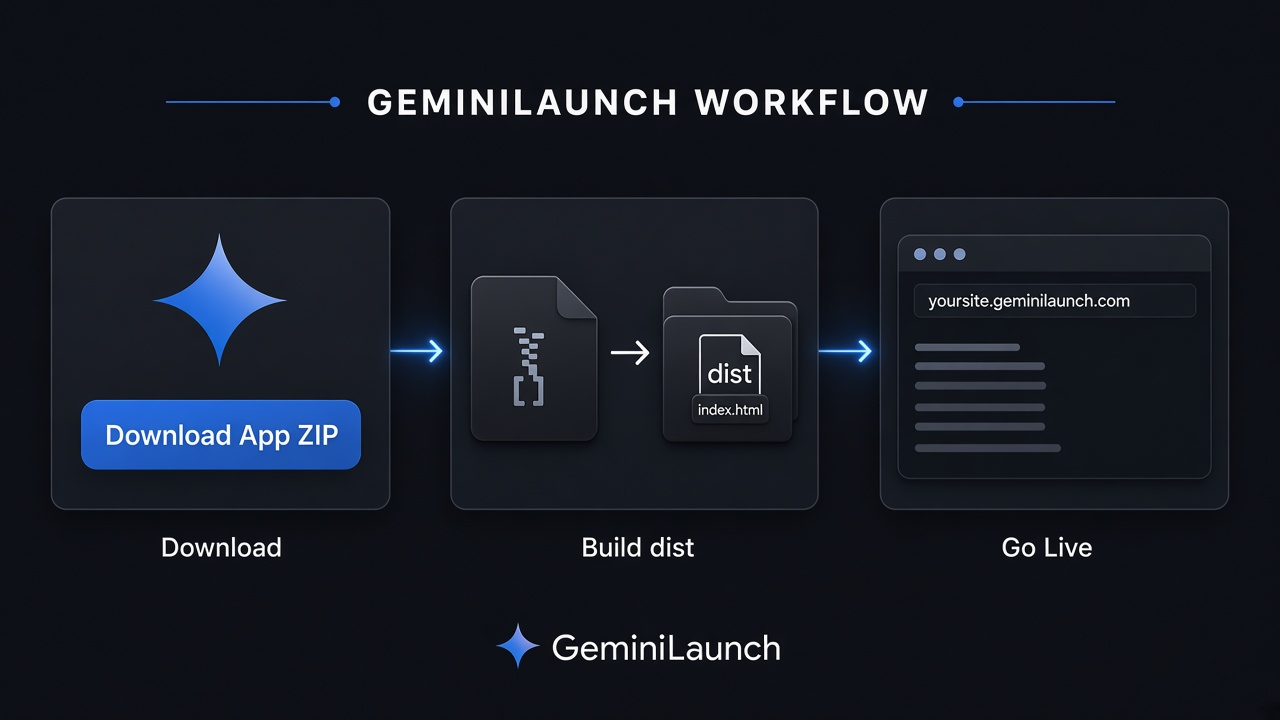
For a static site from Google AI Studio: Download App → npm install → npm run build → upload dist/ to GeminiLaunch. Free live URL. Custom domain on Pro ($15/mo). No GitHub.
For apps that call Gemini with a server-side API key, use AI Studio's Publish → Cloud Run path instead — that is what Google designed for secrets and full-stack runtimes.
The gap
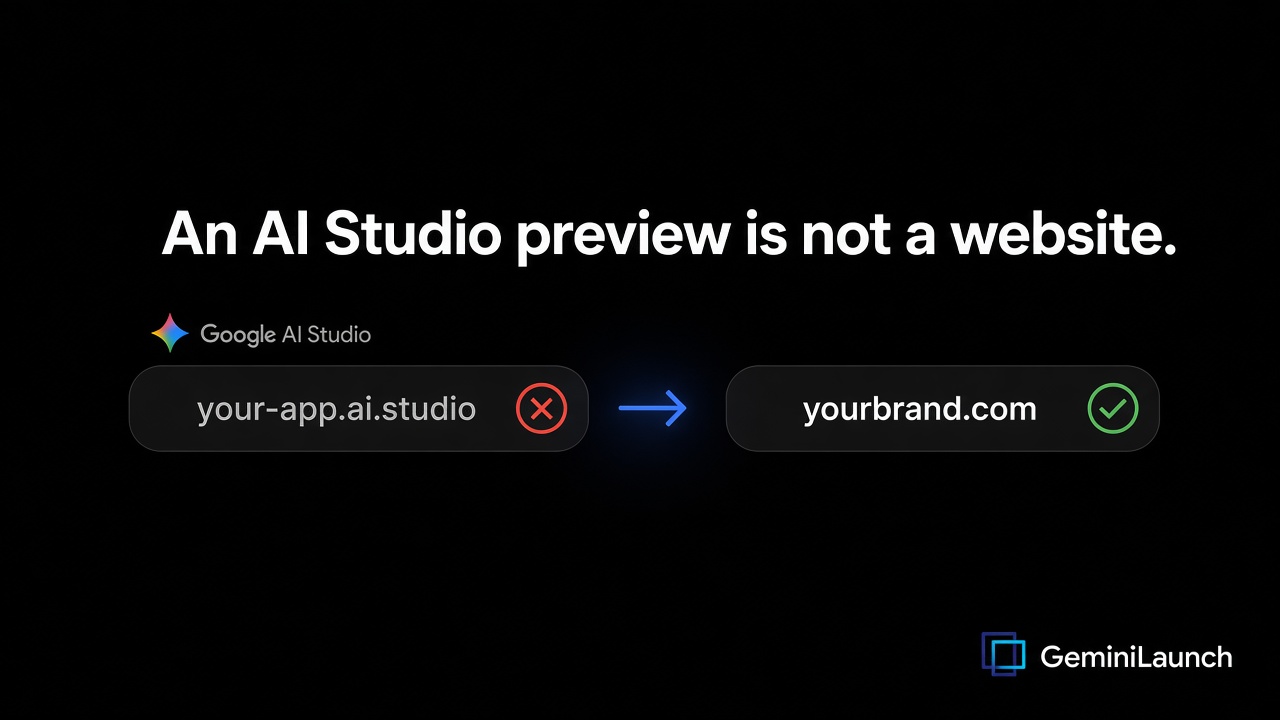
A preview (or ai.studio URL) is not your website
Google AI Studio Build (sometimes called vibe coding) turns a prompt into a web app — React on the client, often with a Node runtime for secure API calls. You get a live preview while you chat.
When you are ready to share, Google offers Publish to Cloud Run (optional *.ai.studio subdomain), GitHub sync, or Download as ZIP. None of those by themselves put the site on your registrar domain without extra steps.
Key insight
The download ZIP is source code. Until you run a production build (or stay on Cloud Run), you do not have a static website folder to host.
Sources: Build apps in Google AI Studio, Deploying from Google AI Studio.
Compare
Four paths after you build
| Path | URL | Domain | Reality check |
|---|---|---|---|
| AI Studio preview / share | Private or shared inside AI Studio | No custom domain | Great for iterating — not a public brand URL |
| Publish → Cloud Run | Cloud Run URL or *.ai.studio | ai.studio subdomain option | Best when your app needs Gemini API keys server-side |
| Download ZIP only | Files on your computer | No URL until you host | Source code (Vite/React) — not a finished website yet |
| GeminiLaunch | yoursite.geminilaunch.com | yourbrand.com on Pro | Upload the built dist folder — free start, no GitHub |
Building in Gemini chat Canvas instead? See turn a Gemini Canvas into a website — that flow is paste-and-publish, not a Vite ZIP.
Step-by-step
From AI Studio Build to a live GeminiLaunch URL
This path is for static sites after build. Plan about five minutes once the app looks good in preview.
Build the site in Google AI Studio
Open Google AI Studio → Build, describe a static marketing site or portfolio (landing page, services, contact). Iterate in the live preview until it looks right. Prefer a frontend-only site for this path — skip Firebase auth, server secrets, and live Gemini API calls if you want a simple public page.
Tip: Prompt tip: "Build a static portfolio website with React. No backend, no API keys, no Firebase — just pages I can host as static files."
Download the app as a ZIP
In Build mode, open your app and use Download App (or Export → Download as .zip). Google ships a full project: package.json, src/, Vite config — not a ready-to-serve public folder. That ZIP is source code.
Tip: Official docs call this out: outside Cloud Run you must set GEMINI_API_KEY yourself for apps that call Gemini from the server. Static pages do not need that.
Install and run the production build
Unzip on your computer. In a terminal at the project root run npm install, then npm run build. Vite writes a dist/ folder with index.html and hashed assets. That folder is the real website.
Tip: If the build fails, fix it locally first. Preview with npm run preview before you upload. Never upload src/ or node_modules.
Upload dist to GeminiLaunch and go live
Open GeminiLaunch, create a project, choose ZIP / Folder, and upload the contents of dist/ (index.html at the root of the upload). Click Go Live. You get a free HTTPS URL on *.geminilaunch.com — no GitHub, no Cloud project, no CI.
Tip: Free plan: up to 3 sites, 5 MB each. Pro ($15/mo): larger uploads, unlimited sites, custom domains (up to 5).
Optional: connect your own domain
On Pro, open your project and attach yourbrand.com with one DNS record. GeminiLaunch shows exactly what to copy. Most domains go live within minutes after DNS updates.
Tip: Keep iterating in AI Studio, re-download or rebuild, then re-upload dist to the same project so your URL stays stable.
Deeper Vite tips: host a Vite or React build without GitHub.
Decision
When Cloud Run wins (be honest)
Prefer GeminiLaunch when
- Marketing site, portfolio, or brochure after
dist/ - You want a free durable URL without a Cloud project
- You want yourbrand.com later without staying on ai.studio
Prefer Cloud Run when
- The app calls Gemini with a server-side API key
- You use Firebase Auth, Firestore, or Node backends
- You want Google's one-click Publish from Build mode
Avoid these
Common mistakes
Uploading the Download ZIP without building
Browsers cannot run JSX, TypeScript, or package.json. Uploading the raw AI Studio ZIP usually means a blank page. Always npm run build and upload dist/.
Treating *.ai.studio as your brand domain
Google’s custom URL under ai.studio is convenient, but it still sits on Google’s naming. Clients and search engines treat yourbrand.com differently.
Expecting GeminiLaunch to run Node secrets
Static hosting serves HTML, CSS, and JS only. Apps that need server-side GEMINI_API_KEY, Firebase Auth, or npm backends belong on Cloud Run (or a Node host) — not a static upload.
Wrong Vite base → blank CSS
If vite.config sets base for GitHub Pages (for example /repo-name/), assets break on a root subdomain. Use base: '/' (or './'), rebuild, and re-upload.
Confusing AI Studio with Gemini Canvas
Canvas share links are g.co/gemini/share snapshots. AI Studio Build is a full app environment with Download, GitHub sync, and Cloud Run publish. Different tool, different export.
Still blank after upload? Why your uploaded website is blank.
Frequently asked questions
How do I turn a Google AI Studio project into a website?
Build the app in AI Studio Build mode, download it as a ZIP, run npm install and npm run build, then upload the dist folder to GeminiLaunch. You get a free live URL in minutes. For apps that need Gemini API keys on a server, use AI Studio’s Publish to Cloud Run instead.
Can Google AI Studio publish a website directly?
Yes — Publish deploys to Google Cloud Run and can use an ai.studio subdomain. Starter Tier lets you publish a limited number of full-stack apps without a full Cloud billing setup. That path keeps Google hosting and Google URLs.
Is a Google AI Studio download ready to host?
No. The ZIP is usually a Vite/React source project. You must install dependencies and run a production build. Upload dist/ (or build/), not src/.
Google AI Studio vs Gemini Canvas — what’s the difference?
Gemini Canvas is a chat canvas with a g.co share link. Google AI Studio Build creates multi-file web apps you can download, sync to GitHub, or deploy to Cloud Run. This guide is for AI Studio Build projects.
Do I need GitHub to host an AI Studio site?
No. Download the ZIP, build locally, and upload dist to GeminiLaunch. GitHub sync is optional if you prefer to develop in an IDE.
When should I use Cloud Run instead of GeminiLaunch?
Use Cloud Run when your app needs server-side Gemini API calls, secrets, Firebase Auth, or other Node backends. Use GeminiLaunch when the site is static HTML/CSS/JS after build — portfolios, landing pages, and marketing sites.
Is it free to publish on GeminiLaunch?
Yes. Free includes up to 3 live sites on a GeminiLaunch subdomain (5 MB each). Pro is $15/mo for unlimited sites, larger uploads, and custom domains.
Can I put an AI Studio site on my own domain?
On GeminiLaunch Pro, yes — connect yourbrand.com with one DNS record. AI Studio’s built-in custom URL option is under ai.studio, not your registrar domain.
Why is my uploaded AI Studio site blank?
Most often you uploaded source instead of dist, nested index.html one folder too deep, or used a wrong Vite base. See our blank ZIP fixes guide, then rebuild and re-upload.
Does this work with React from AI Studio?
Yes. AI Studio’s default web stack is React. After npm run build, the static output uploads like any other Vite project on GeminiLaunch.
Ready to publish your AI Studio project?
Build the dist folder, upload it, and get a free live URL — then add your domain when you are ready.
Like this guide? Make GeminiLaunch a preferred source.
Get our hosting and deployment guides surfaced first in your Google results, AI Overviews, and Top Stories.